3.19. User Management
Access user management via Settings > Users. This section
allows administrators to add or edit user accounts.
The 2FA field in the overview indicates whether a
user has Two Factor Authentication enabled.
When creating a user, you can enforce a password change and the use of 2FA. If those options are selected, the user can only use the Management Center with limited functionality until the password has been changed and 2FA has been enabled.
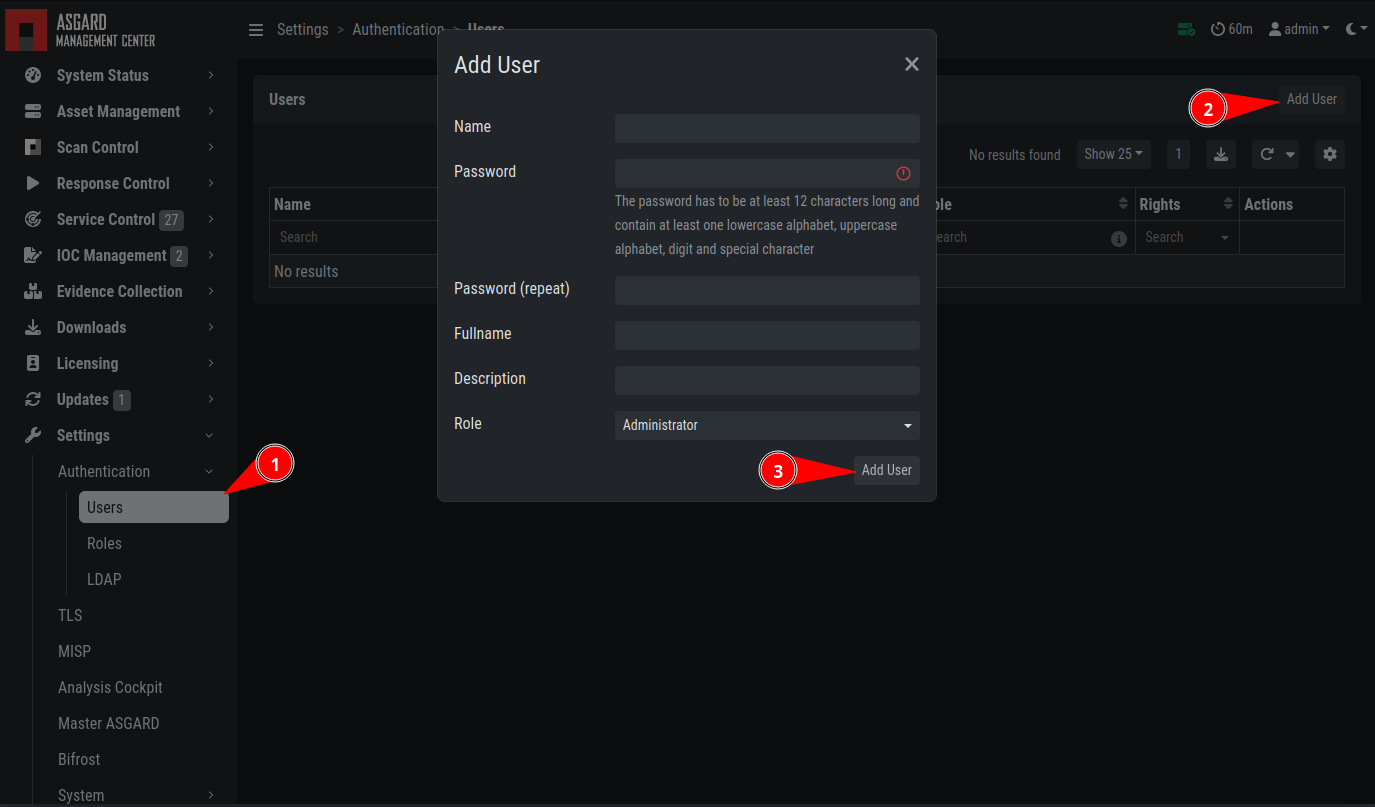
Add User Account
Editing a user account does not require a password, even though the fields are shown in the dialog. An initial password is required for user creation.
Access the user roles in Settings > Roles.
You can download a list of all users in CSV format.
3.19.1. User Defaults
You can set user defaults to preselect certain options when a new user is created. These are not strict enforcements. They set the default values when the User Creation modal is opened.
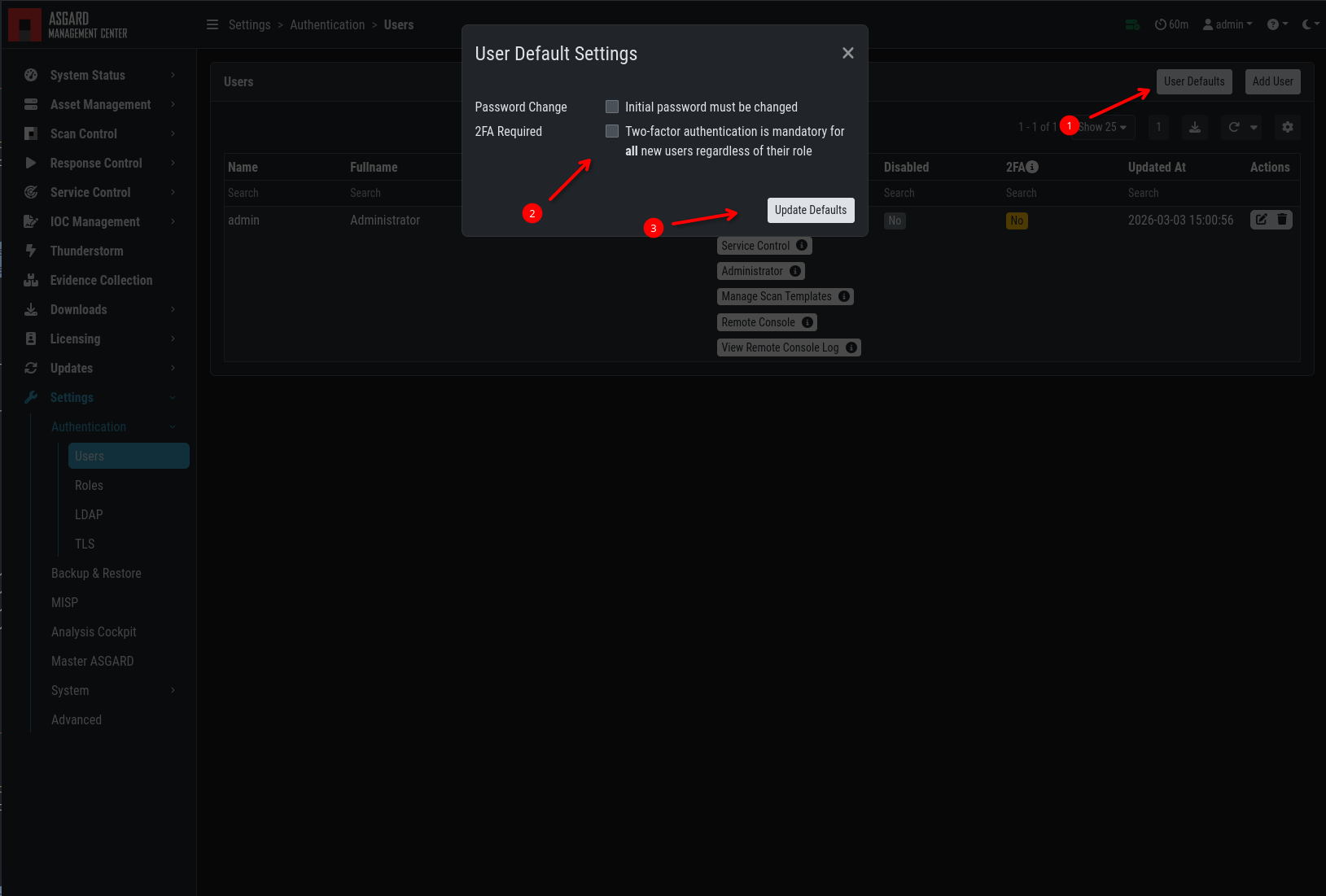
User Defaults
3.19.2. Roles
By default, ASGARD ships with the following pre-configured user roles. The pre-configured roles can be modified or deleted. The ASGARD role model is fully configurable.
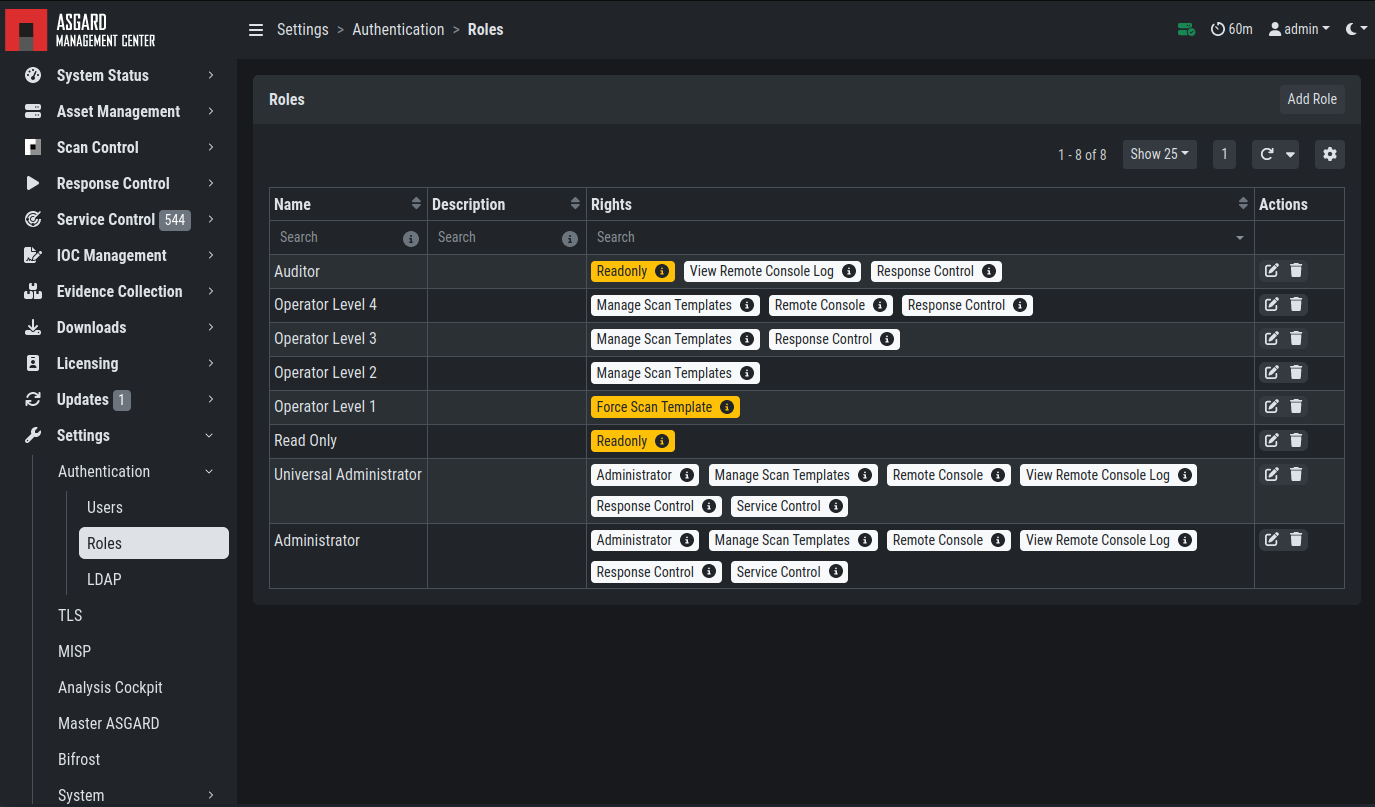
User Roles – Factory Defaults
All users except users with the Readonly right can run scans on endpoints.
The following section describes the predefined rights and restrictions that each role can have.
3.19.3. Rights
Role |
Permissions |
|---|---|
Administrator |
Unrestricted |
Manage Scan Templates |
Allows scan template management |
Remote Console |
Connect to endpoints via remote console |
View Remote Console Log |
Review the recordings of all remote console sessions |
Response Control |
Run playbooks, including playbooks for evidence collection, to kill processes or isolate an endpoint |
Service Control |
User can manage services on endpoints, e.g. Aurora |
3.19.4. Restrictions
Role |
Restrictions |
|---|---|
Force Scan Template [2] |
Force user to use predefined scan templates that are not restricted |
No Inactive Assets [2] |
Cannot view inactive assets in asset management. |
No Task Start [2] |
Cannot start scans or tasks (playbooks) |
Readonly [2] |
Cannot change anything or run scans or response tasks. Used to generate read-only API keys |
3.19.5. LDAP Configuration
To configure LDAP, navigate to Settings > LDAP.
In the left column you can test and configure the LDAP connection itself.
In the right column, the mapping of LDAP groups to ASGARD groups
(and its associated permissions) is defined.
First, check whether your LDAP server is reachable by ASGARD by clicking "Test Connection".
Note
If you are using LDAPS with a self-signed certificate or a custom CA, you must trust the signer on the ASGARD server.
Copy the CA certificate to /usr/local/share/ca-certificates.
Run sudo update-ca-certificates.
Restart the ASGARD service: sudo systemctl restart asgard-management-center.
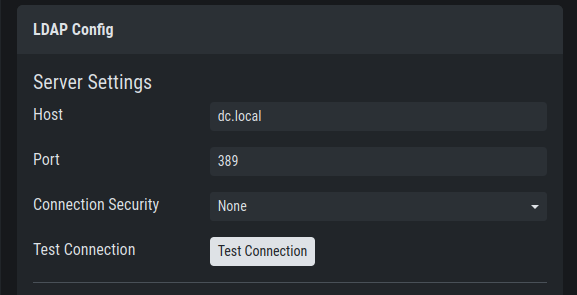
Configure the LDAP Server
Then check the bind user you want to use for ASGARD. Read
permissions on the bind user are sufficient. To find out
the distinguished name, use an LDAP browser or query it
using the PowerShell AD module command Get-ADUser <username>.
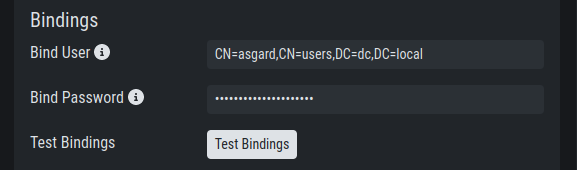
Configure the LDAP Bind User
Next, configure the LDAP filters used to identify the groups and users and their preferred attributes in your LDAP structure. A default for LDAP and AD in a flat structure is given in the "Use recommended filters" drop-down menu, but you can adapt it to your environment. The test button shows whether a login with that user would be successful and which groups ASGARD identified and could be used for a mapping to ASGARD groups.
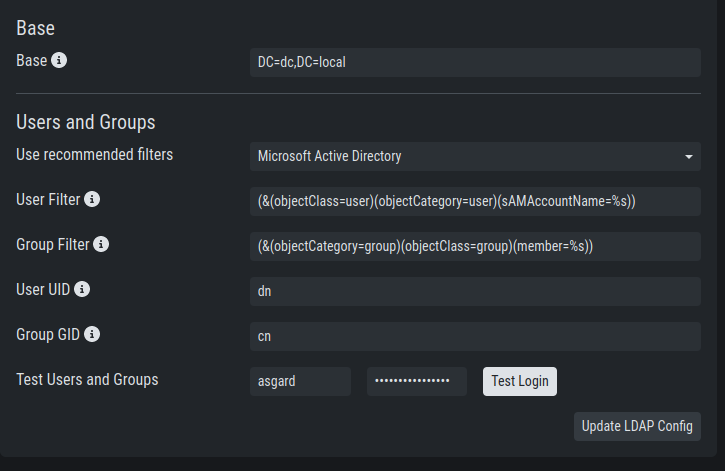
Configure the LDAP User and Group Filters
If you need to adapt the recommended configuration or want to customize it,
we recommend an LDAP browser such as ADExplorer
from Sysinternals to browse your LDAP structure. For example, you could
use your organization's email address as a user login name if you change the "User Filter"
to (&(objectClass=user)(objectCategory=user)(userPrincipalName=%s))
Note
You need to save the configuration by clicking Update LDAP Config.
Using the test buttons only uses the data in the forms, but does not
save it. You can use the test buttons for testing at any time
without changing your working configuration.
After the LDAP configuration is set up, provide role mappings from LDAP
groups to ASGARD groups. This is done in the right column with the
Add LDAP Role feature.
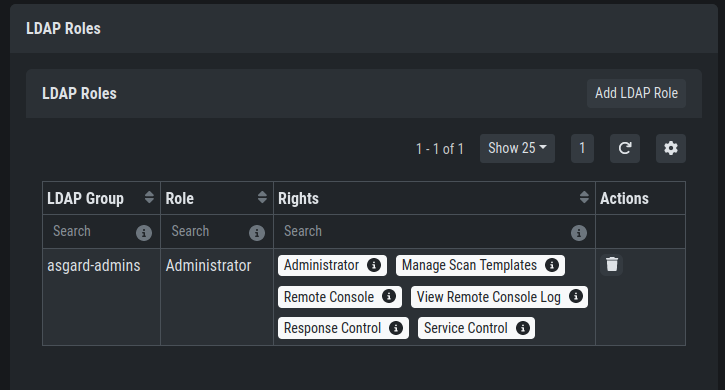
LDAP Group to ASGARD Role Mapping