3.10. Response Control
Response Control is used to execute tasks on your agents. These tasks can be:
Run Playbook (pre-defined or custom)
Run Interrogate (collect system information)
Open Remote Console
Maintenance
Upgrade Agent
Upgrade Service Controller
Configure the asset's proxy
Move asset to another ASGARD
Several other tasks can also appear in the Response Control section, including:
Directory Listing (Browse the file system)
Log (view the ASGARD Agent Log)
System Stats (view the system load)
These tasks can only be started from the Details view of an asset, but appear here for audit purposes.
3.10.1. Opening a Remote Console on an endpoint
To open a remote console on an endpoint, open the Asset Management section and click the "command line" button in the Actions column.
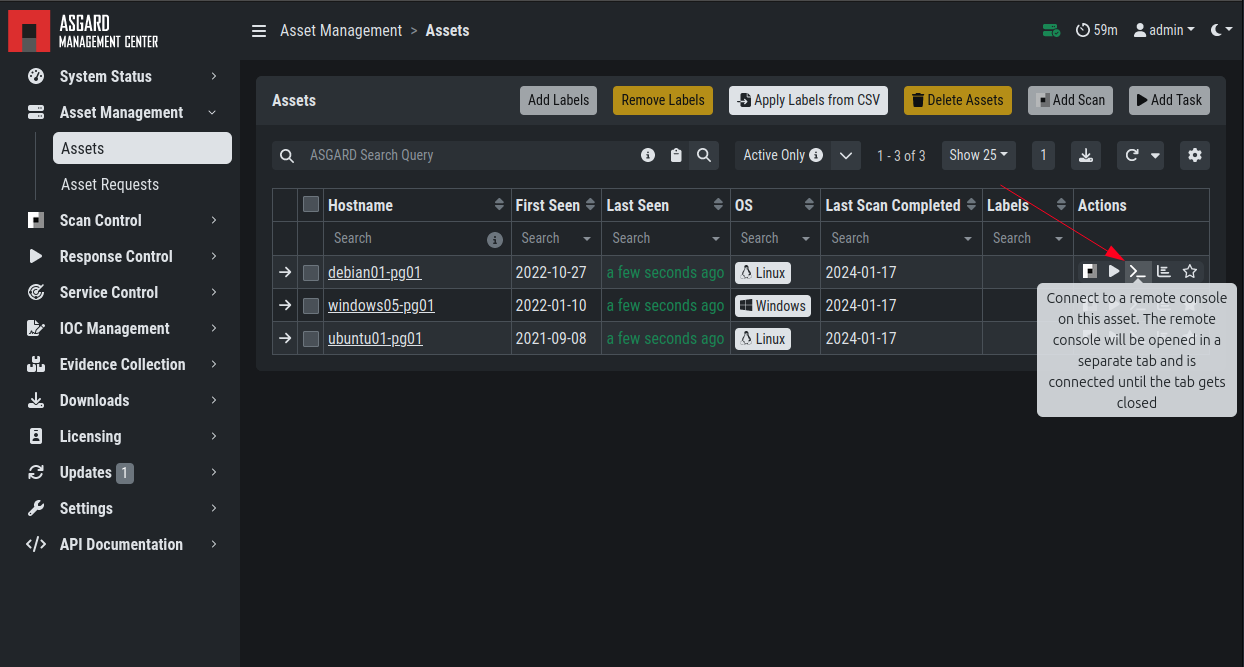
Opening a Remote Console from the Asset View
All actions within the remote console are recorded and can be audited. All consoles open with root or system privileges.
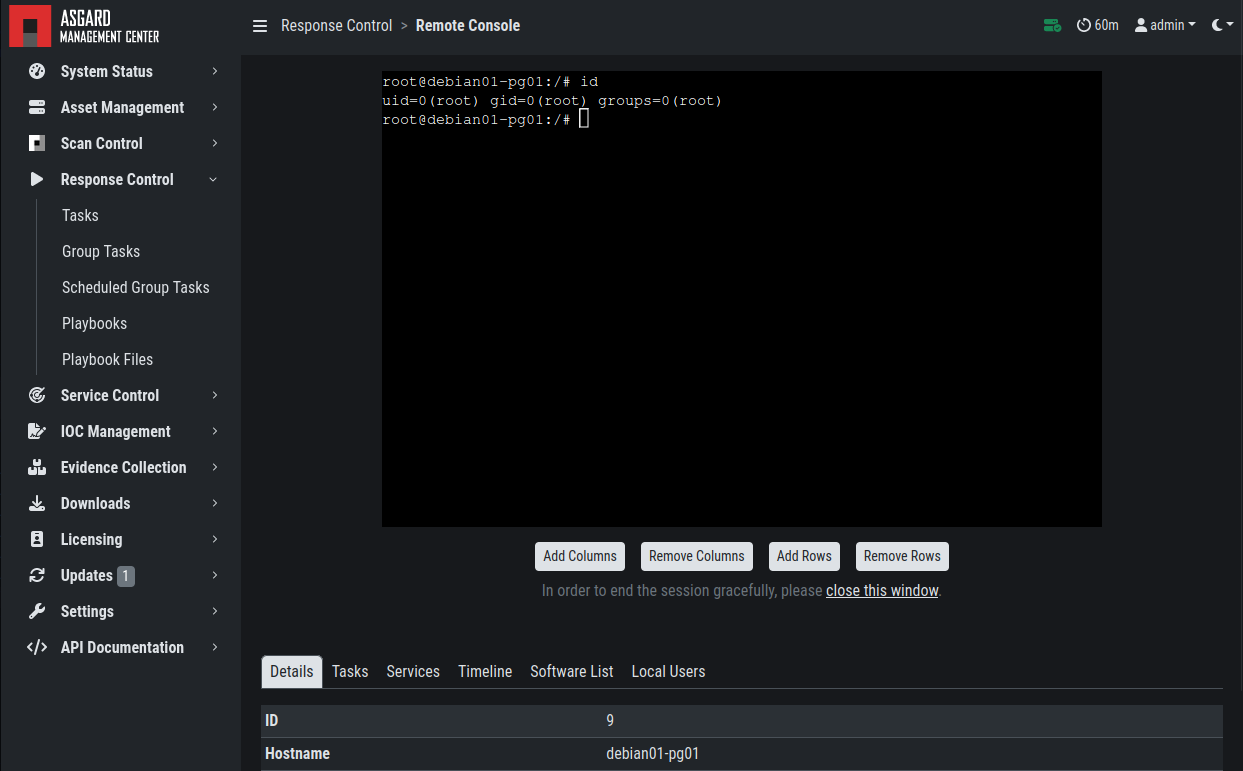
Remote Shell
To replay a remote console session, navigate to Response Control,
expand the task that represents your session by clicking the arrow to the left
in the task row. Select the Console Log tab and click the play button in
the bottom row.
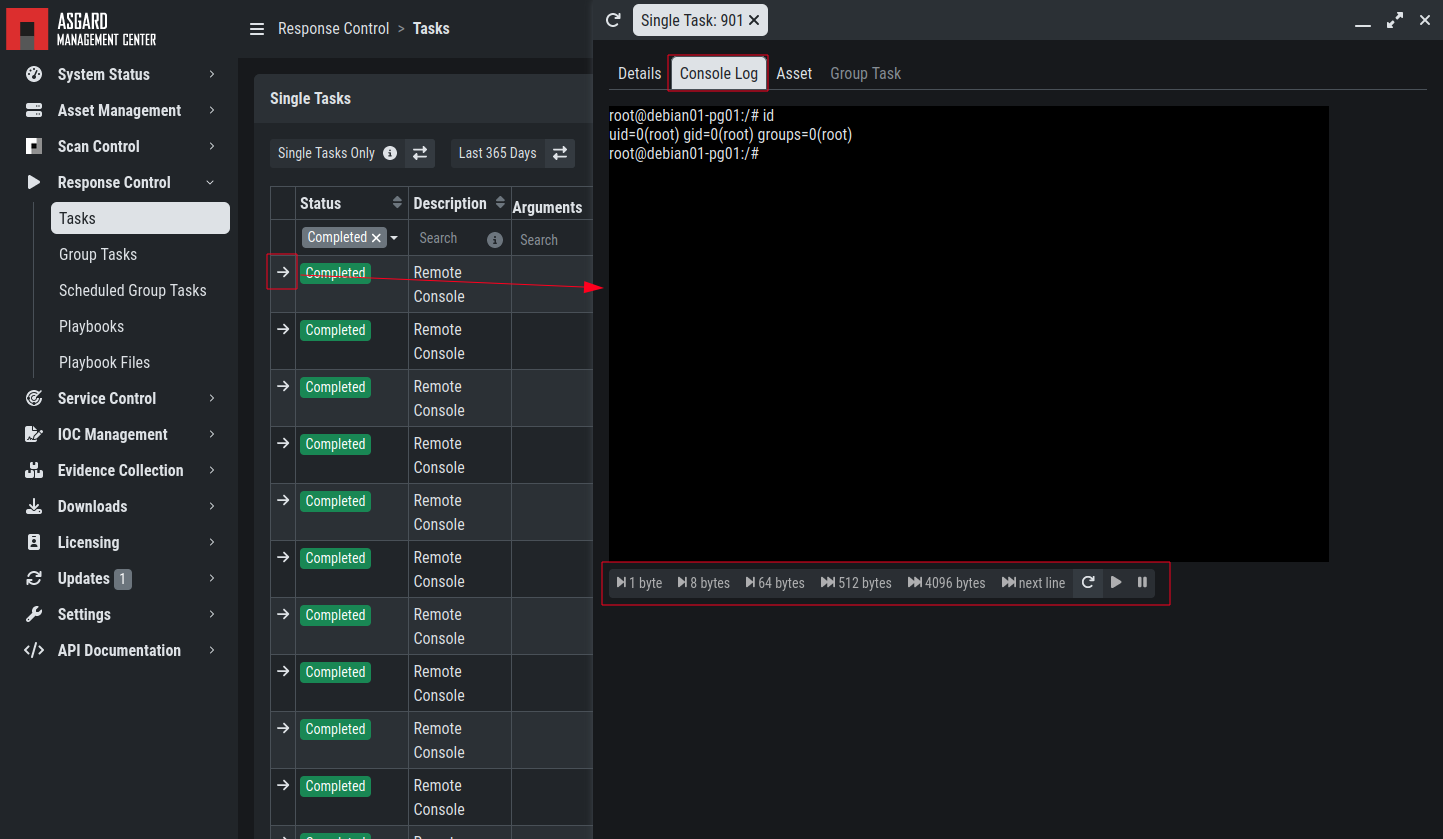
Replay Remote Shell Session
ASGARD users can only see their own remote console sessions. Only users with
the View Remote Console Log permission can replay sessions from all users.
Note
The permission View Remote Console Log requires the Response Control
permission.
3.10.2. Response Control with Pre-Defined Playbooks
In addition to controlling THOR scans, the Management Center contains extensive response functions. Through your Management Center, you can start or stop processes, modify and delete files or registry entries, quarantine endpoints, collect triage packages, and execute commands on connected systems. These actions can be executed on one or multiple endpoints at once.
It is also possible to download specific suspicious files. You can transfer a suspicious file to ASGARD Management Center for offline analysis.
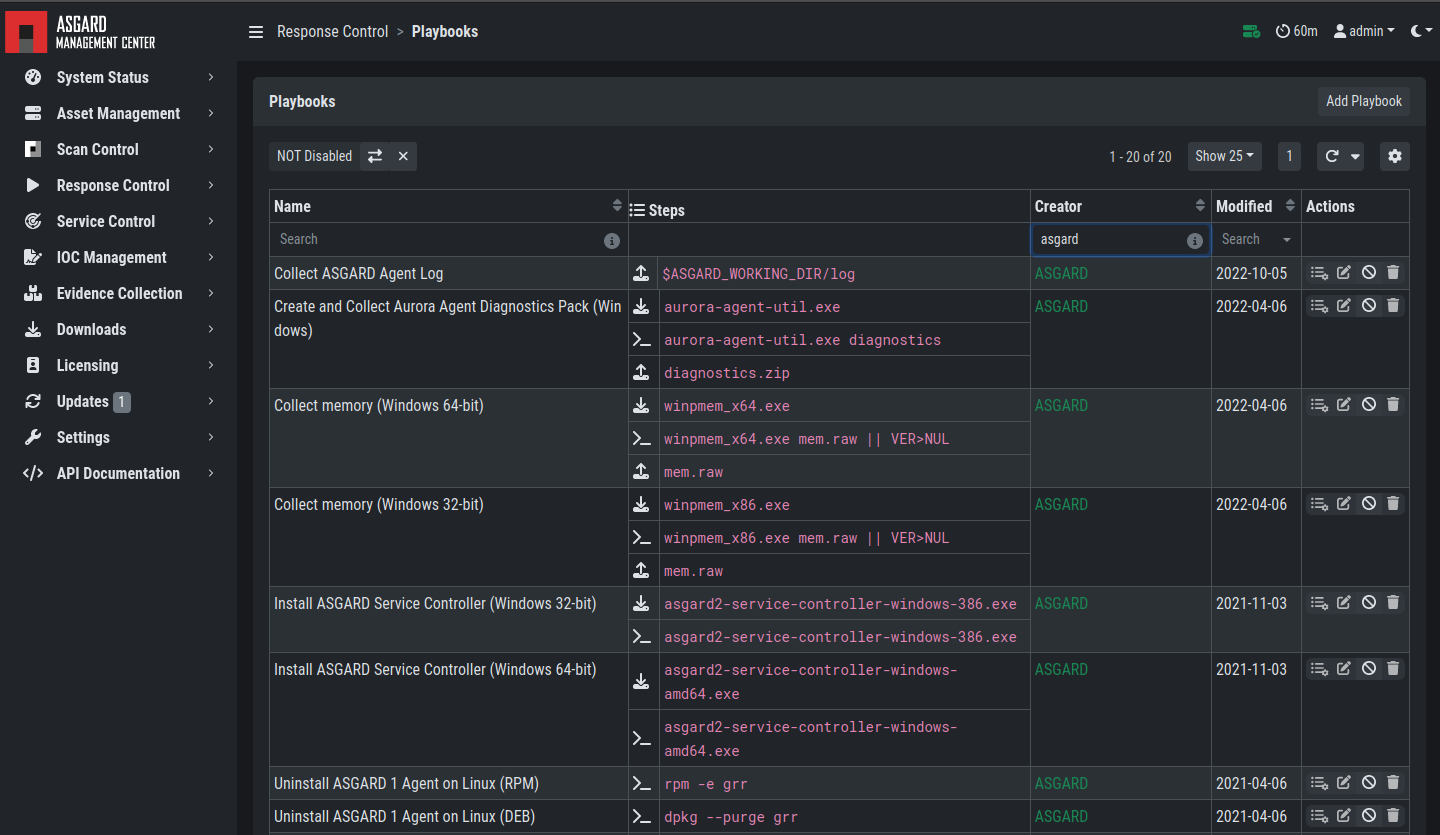
Built-in Playbooks
To execute a predefined response action on one or more endpoints, navigate to the Assets view and either click the "play" button in the Actions column, or select multiple assets and click the "Add Task" button in the upper-right corner. A dialog opens where you can select the desired action.
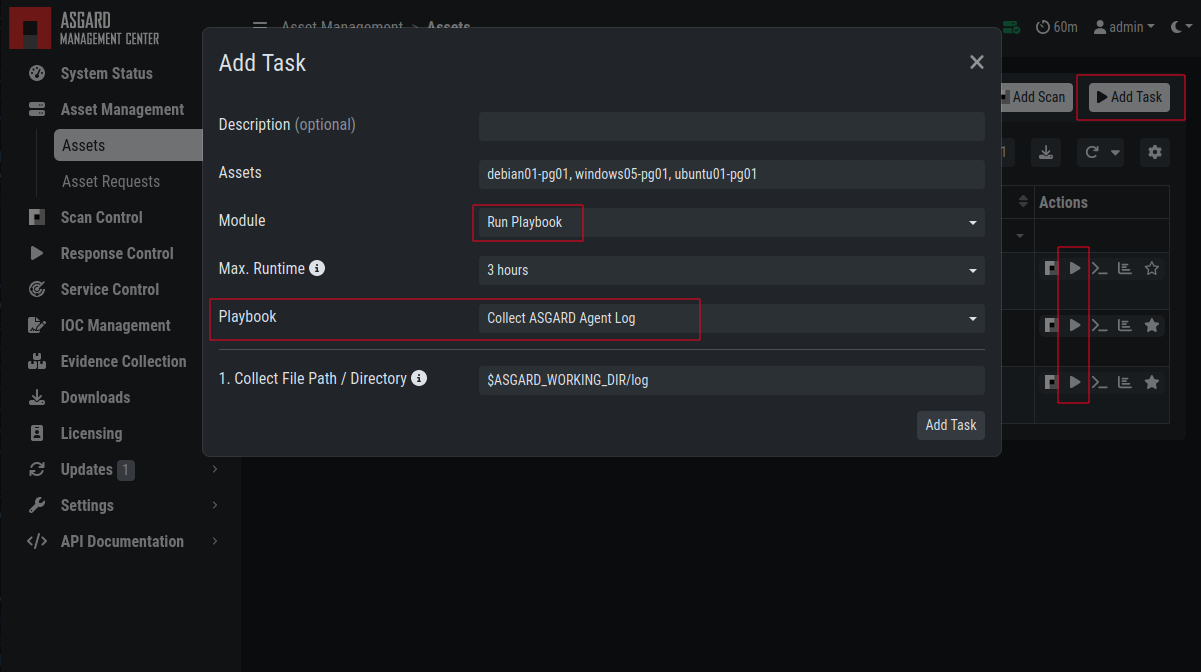
Execute Playbook on Endpoints
In this example, we collect the ASGARD Agent Logs.
ASGARD ships with pre-defined playbooks for the following tasks:
Collect ASGARD Agent Log
Create and Collect Aurora Agent Diagnostics Pack (Windows only)
Collect full triage pack (Windows only)
Isolate endpoint (Windows only)
Collect system memory
Collect file / directory
Collect directory
Collect Aurora diagnostics pack
Execute command and collect stdout and stderr
Warning
Memory collection can place systems under high load and affect response times while collected files are transmitted. Consider all settings carefully. Memory dumps may fail due to kernel incompatibilities or conflicting security mechanisms. Memory dumps have been successfully tested on all supported Windows operating systems with various patch levels. On Linux systems, memory collection depends on kernel settings and loaded modules. Memory dumps also require temporary free disk space on the system drive and consume significant disk space on ASGARD. The ASGARD Agent checks whether enough disk space is available on the system drive and adds a 50% safety buffer. If there is not enough free disk space, the memory dump fails.
3.10.3. Response Control for Groups of Systems
Response functions for groups of systems can be defined in the Group Tasks
tab or the New Scheduled Group Task tab.
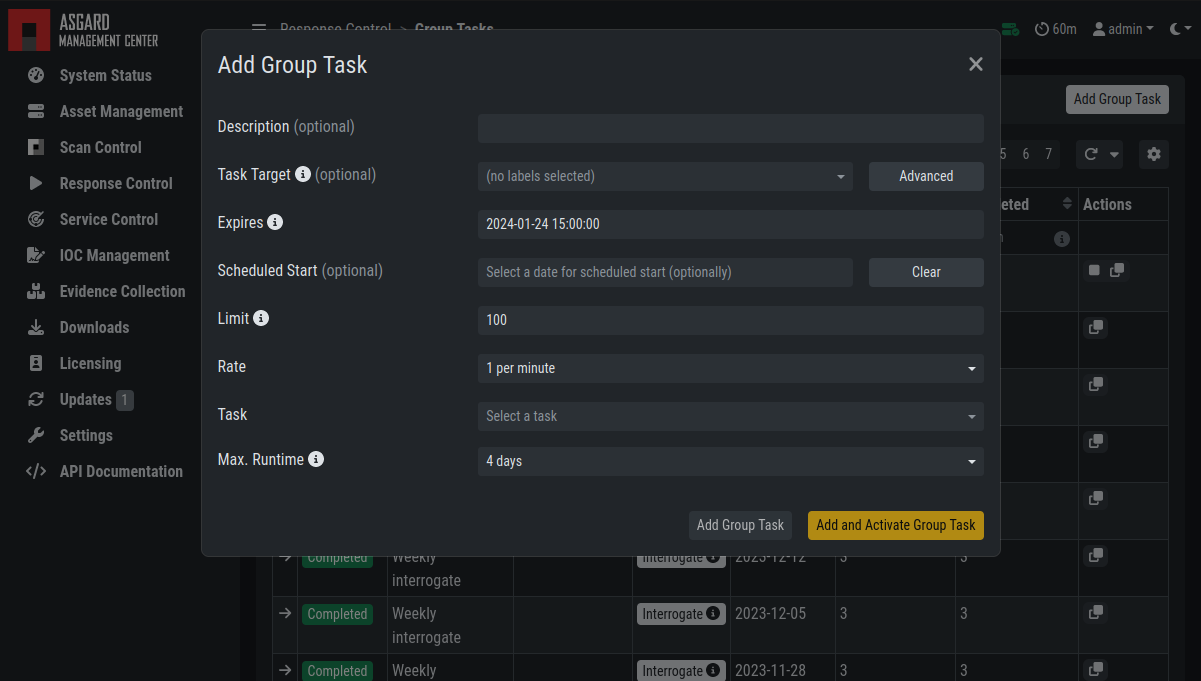
Execute Playbook on Group of Endpoints
This view is similar to the Group Scan view. You can select targets by specifying one or more labels or by using the ASGARD Search Query.
3.10.4. Response Control with Custom Playbooks
You can add your own custom playbook by clicking the Add Playbook button in the
Response Control > Playbooks tab.
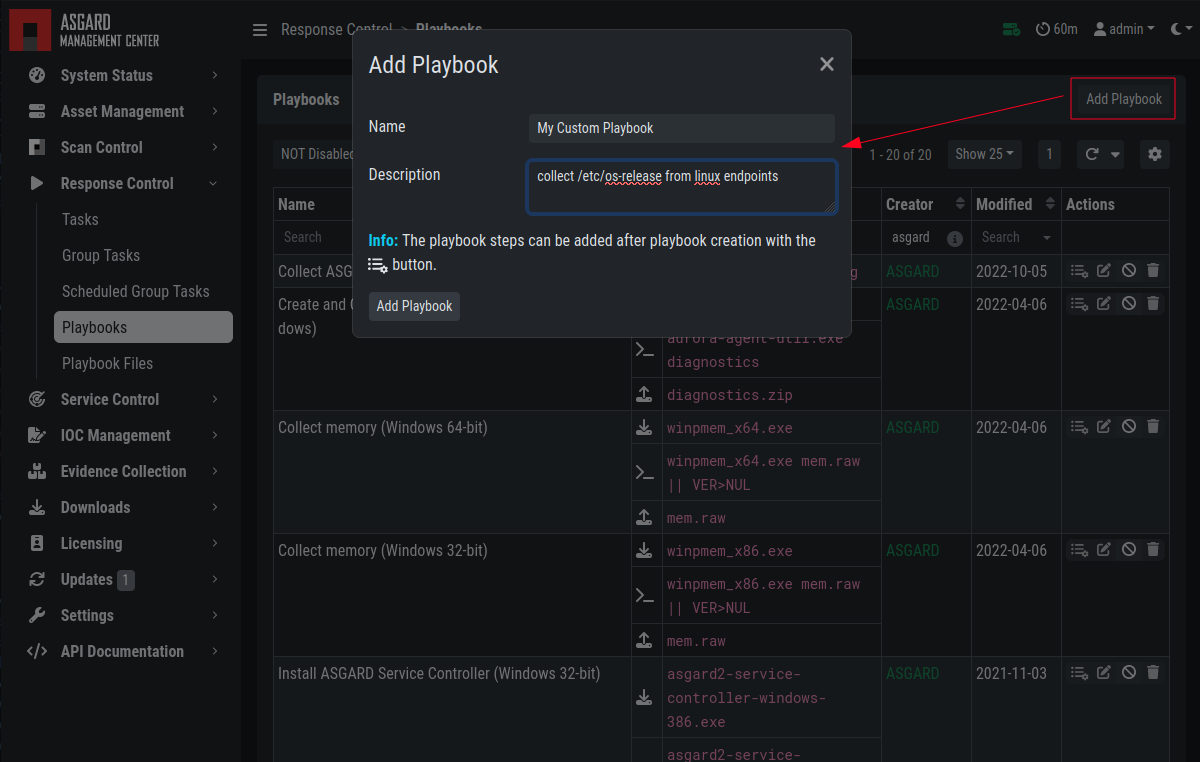
Add Custom Playbook
This lets you define a name and description for your playbook. After clicking
the Add Playbook button, click the Edit steps of this playbook action.
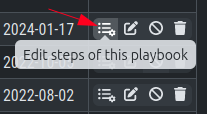
Playbook Action Items
This opens the side pane, where you can add individual playbook steps with
the Add Step button.
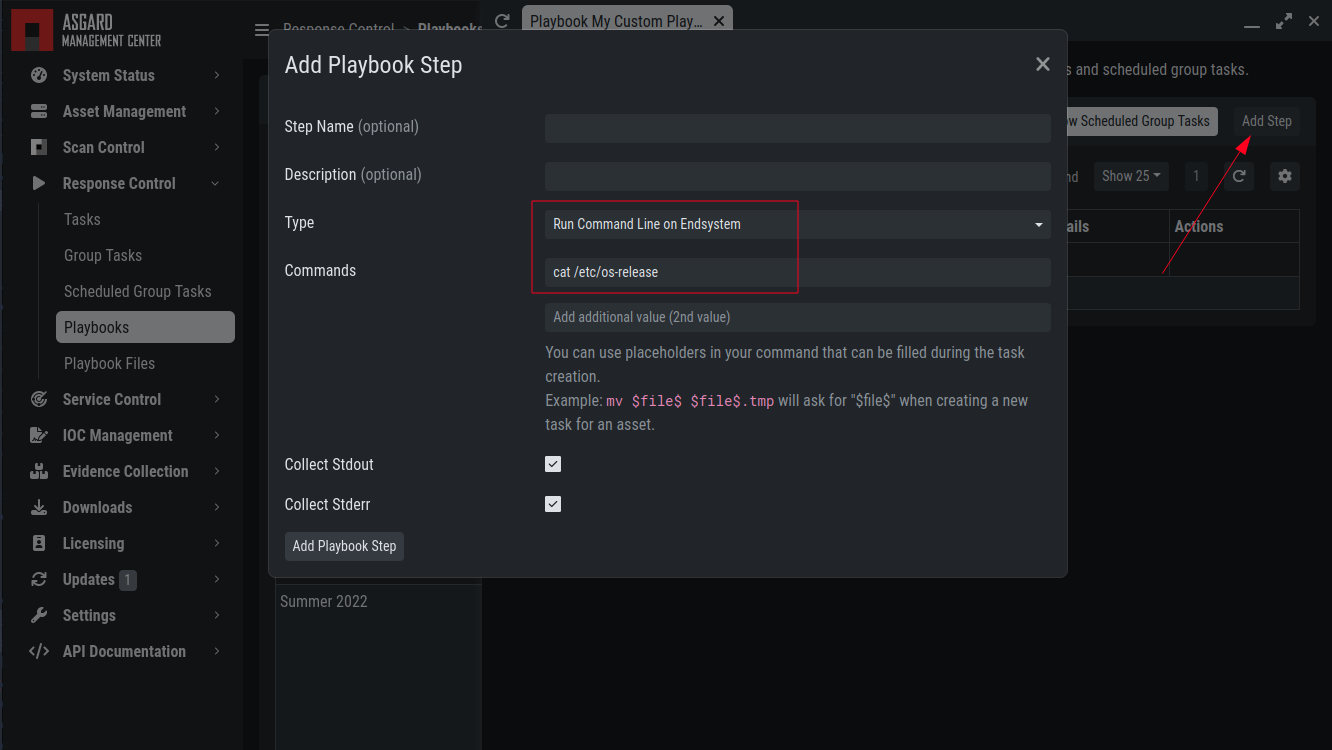
Add Playbook Entry
You can create the following types of playbook steps:
Run Command Line on Endsystem
Upload File to ASGARD Management Center
Download File
from ASGARD Management Center
This allows you to download files from the Management Center to your endpoint and upload files from your endpoint to the Management Center. This way, you can directly collect evidence from endpoints.
If you need custom files for your playbook, such as scripts, configurations,
or binaries, select Upload New File when setting the type to Download File
from ASGARD Management Center during playbook step creation. Alternatively,
upload and manage files at Response Control > Playbook Files.
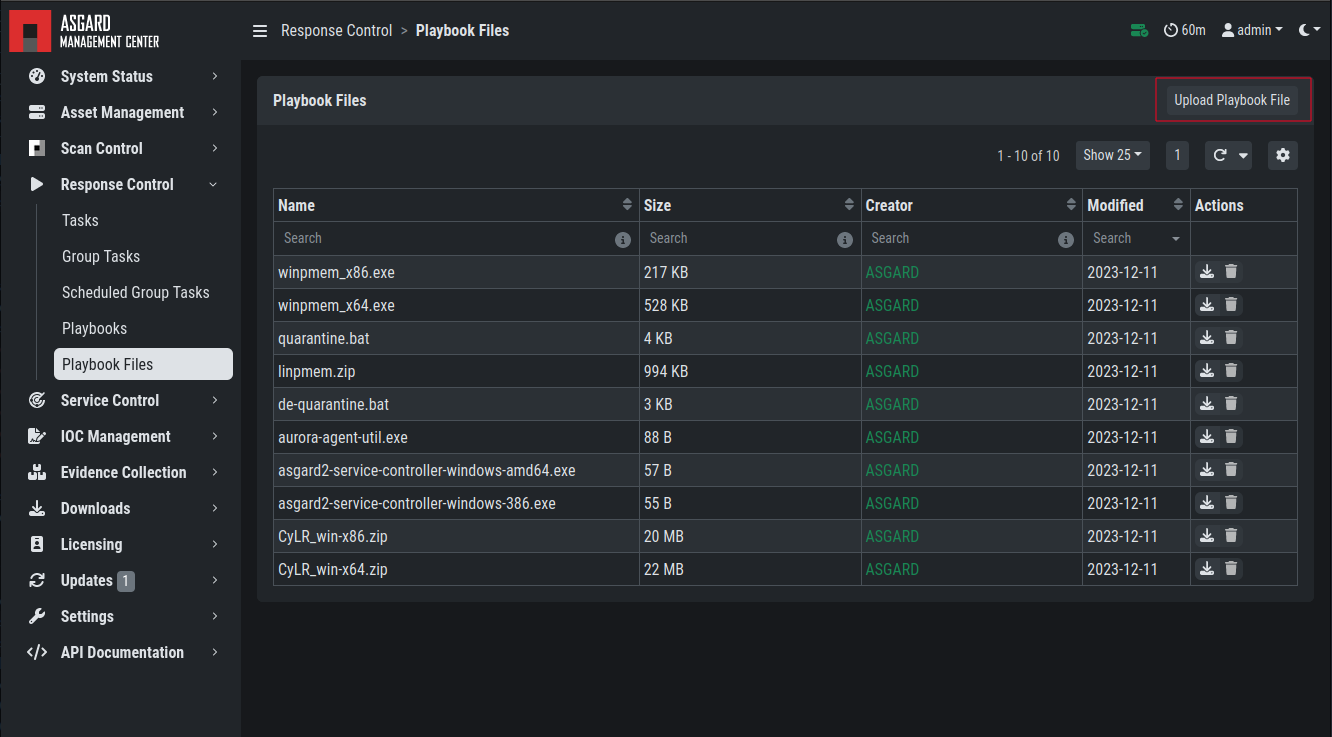
Manage Playbook Files
You can have up to 16 steps in each playbook, which are executed sequentially. If you execute a command, stdout and stderr can also be reported back.
3.10.5. Change the Asset(s) Proxy
You can change proxy settings on your assets via Response Control. To do
this, select the asset or assets and click Add Task in the upper-right
corner. Next, set the Module to Maintenance and the Maintenance Type to
Configure the asset's proxy. You can then set the proxy. Multiple proxies
can be configured, but each field can contain only one FQDN or IP address.
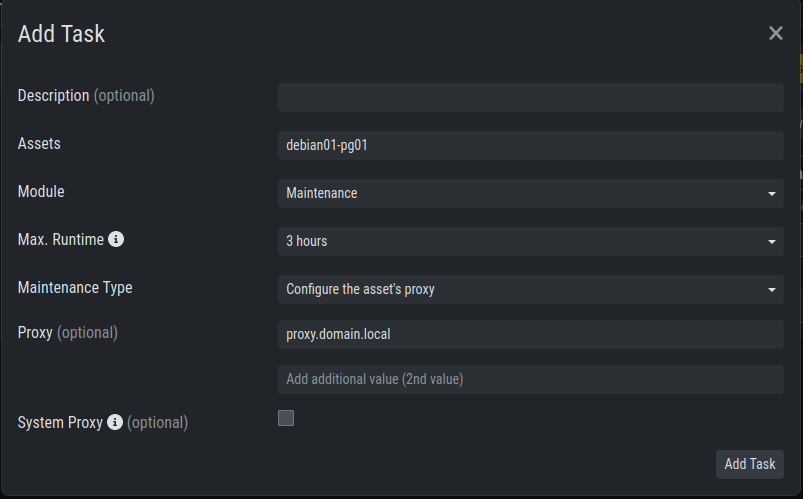
Change/Set an assets Proxy