3.6. Scan a Single System
A single scan, or standalone scan, is a scan task assigned directly to one or more assets. Use it for a one-time scan of a small number of assets.
3.6.1. Create a Single Scan
Create scans from the Assets view. Each asset has a button for creating
a new scan and viewing past scans. You can also assign a single scan to
multiple assets. To do this, select the assets and click the Add Scan
button in the upper-right corner.
Click the "THOR" button in the Action column in the Asset Management view.
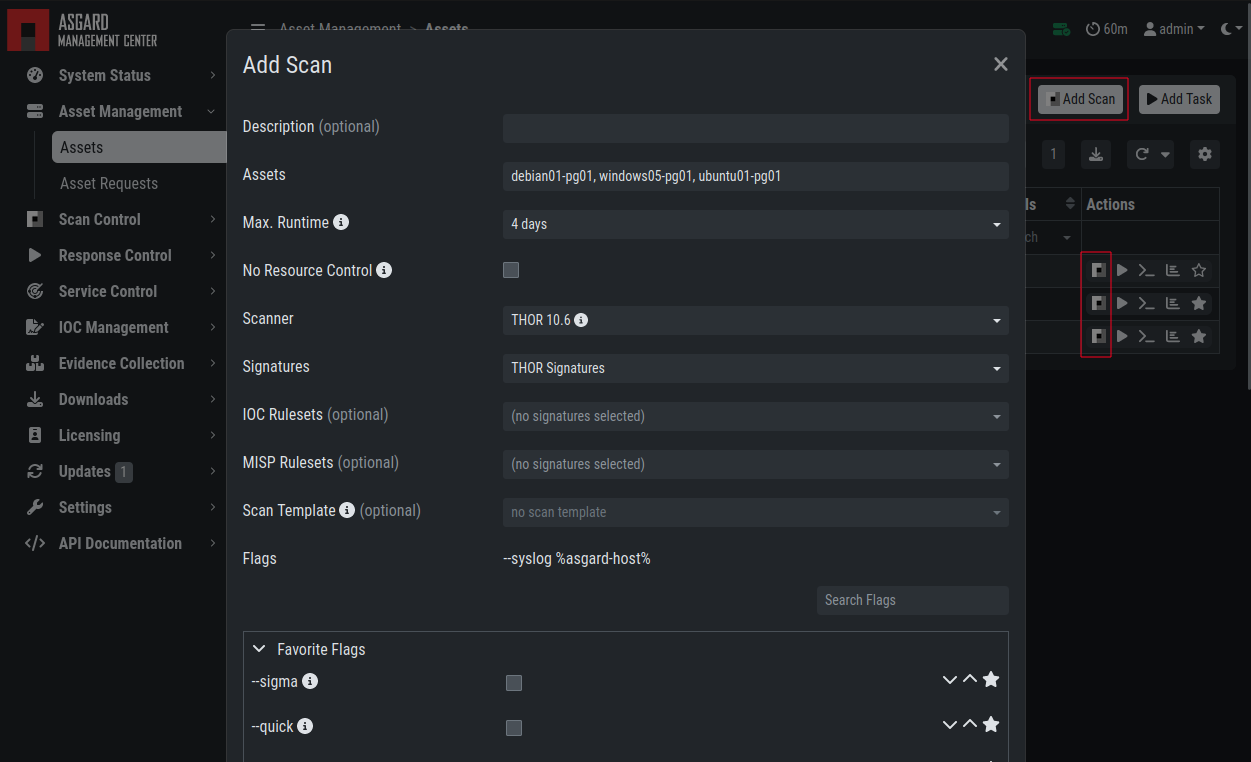
Scan Control - Scan Creation
In this form, you can choose the maximum runtime, module, scanner, scan flags, signatures, or a template.
If your Management Center is connected to an ASGARD Analysis Cockpit, you can enable Live Event Streaming in the scan settings. This forwards THOR events to the Analysis Cockpit while the scan is still running. Without Live Event Streaming, scan results are available after the scan has finished.
After the desired parameters are set, start the scan by
clicking the Add Scan button.
Note
If the scan is interrupted because the asset restarts unexpectedly, or
because THOR or the ASGARD Agent stops due to insufficient resources, the
Agent resumes the scan from where it left off as soon as the asset is
available again by adding the "--resume" flag.
By default, this happens a maximum of five times (Max. THOR Resumes)
within one week (THOR Resume Deadline).
The default values for Max. THOR Resumes and THOR Resume Deadline
can be modified in the Advanced Settings.
Manually setting the "--resume" flag has no effect when scanning via ASGARD.
3.6.2. Stopping a Single Scan
To stop a single scan, navigate to the "Single Scans" tab in Scan Control and click the "stop" (square) button for the scan you want to stop.
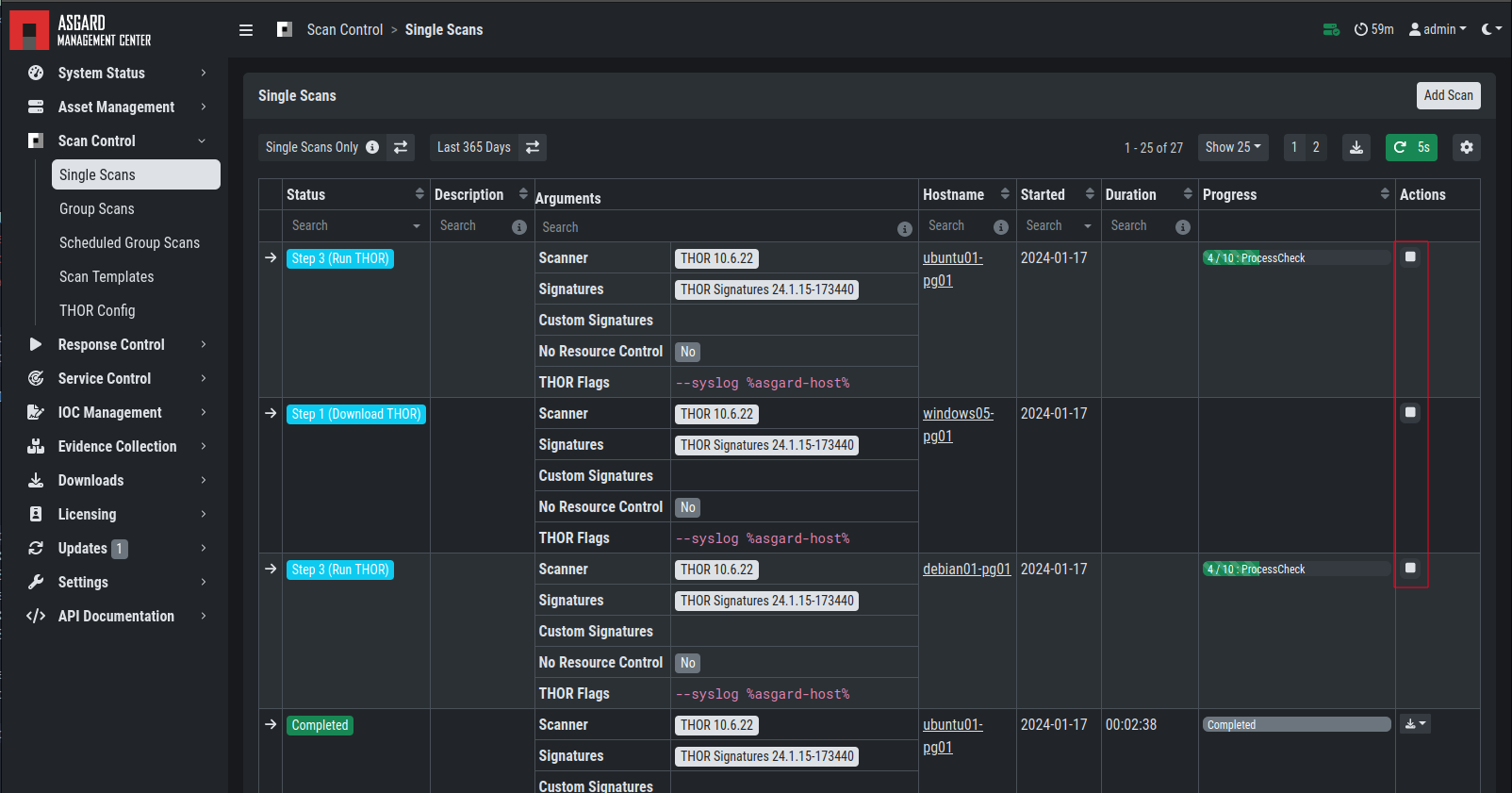
Stopping a Single Scan
3.6.3. Download Scan Results
After the scan completes, you can download the scan results with the download button in the Actions column.
The download button has the following options:
Download Scan Result as TXT (the THOR text log file)
Download Scan Result as JSON (only available if it was started with the
--jsonflag)Download HTML Report (as *.gz compressed file; available for successful scans only)
Show HTML Report (opens another tab with the HTML report)
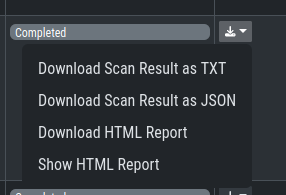
Scan Control - Download Scan Results