3.2. ASGARD Agent Deployment
There are currently two modes of operation for the ASGARD Agent:
Normal - This is the default mode and allows usage of all ASGARD features.
Essential - This is a lightweight mode which only allows THOR scanning and Aurora deployment.
Please note that the Agent in Essential Mode is a separate installer and needs to be created in the Creating Custom Agent Installers.
In order to connect a new endpoint to the ASGARD Management Center, download and install the ASGARD Agent on the system you want to onboard.
The ASGARD Agent can be directly downloaded from the Management Center
login screen through the button Download Agent Installers. A list
of available agents for various operating systems appears.
Hint
You can disable the downloading of agents on the login screen. Please see Advanced Settings.
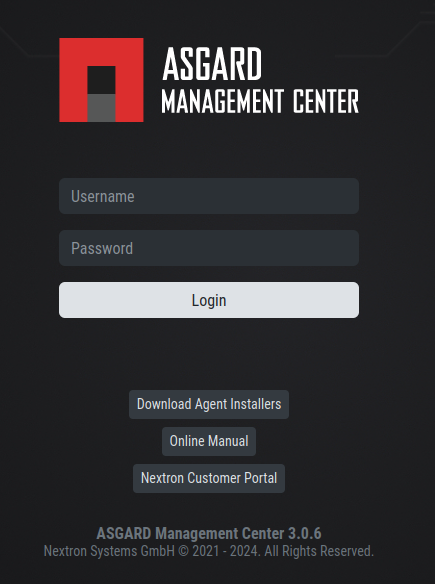
Download Agent Installers from Login Screen
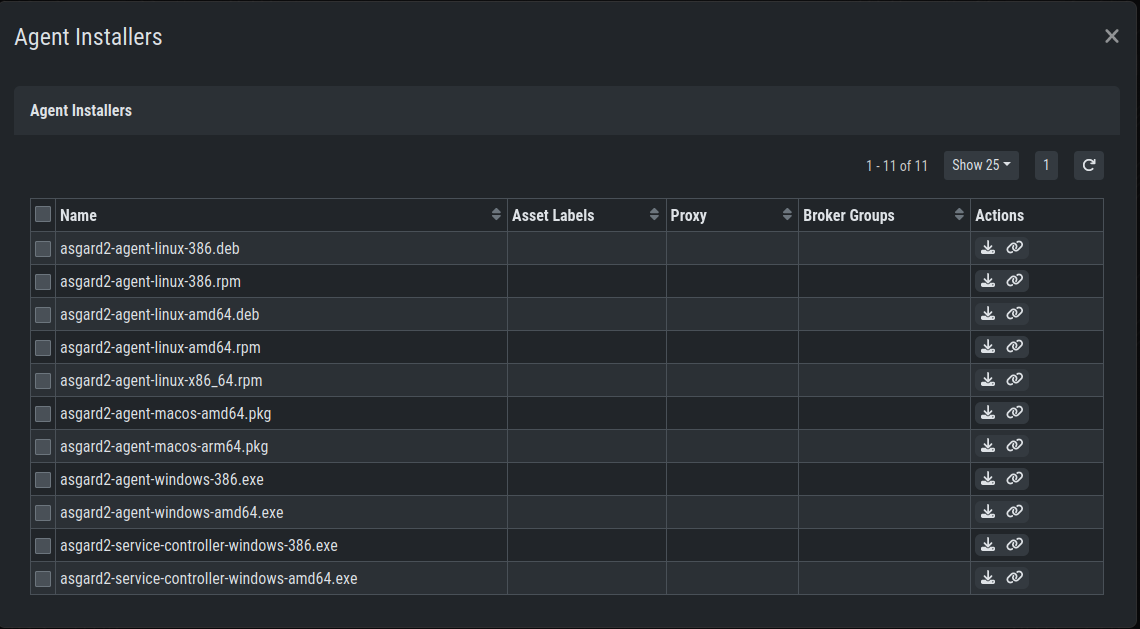
Agents Overview
After the installation, the endpoints will connect to your Management
Center, register automatically and appear in the Asset Management Section
in the tab Asset Requests. Please allow two or three minutes for systems to show
up. The agents use the FQDN to connect to your Management Center, so ensure that
your endpoints can resolve and reach the Management Center via FQDN.
Note
Full administrative privileges are required for the ASGARD agent and THOR to operate properly.
In the requests tab, select the agents you want to allow on your Management
Center to manage and click Accept Asset Requests. After that, the
endpoint shows up in the assets overview and is now ready to be managed and scanned.

Accepting ASGARD Agent Requests
3.2.1. Windows Agent Deployment
Since the Agent Installer for Windows is a normal .exe file and not a
.msi file, you need to write your own scripts to deploy the agent via
your management system of choice. We have written an example script in
PowerShell, which should work for most of the tools. Please see the section
Installing ASGARD Agent via Powershell Script and
Deploy ASGARD Agents via SCCM.
Alternatively, if you want to deploy the ASGARD Agent manually, you can just execute the installer by hand.
3.2.2. Linux Agent Deployment
To deploy the ASGARD Agent on a linux system, you can use the following commands:
user@unix:~/Downloads$ sudo dpkg -i asgard2-agent-linux-amd64.deb
user@unix:~/Downloads$ sudo rpm -i asgard2-agent-linux-amd64.rpm
You will be able to deploy your agents via most of the common linux tools, just make sure that the installer is being installed with administrative privileges.
3.2.3. macOS Agent Deployment
To install the agent on macOS, you can just run the PKG file or execute the following command in terminal:
MacBook-Pro:~ nextron$ sudo installer -pkg /Users/nextron/Downloads/asgard2-agent-macos-arm64.pkg -target /
Starting with macOS Big Sur (v11.0), Apple requires software developers
to notarize applications. Our asgard2-agent installer is notarized.
You can test it, by executing the following command in Terminal:
MacBook-Pro:~ nextron$ pkgutil --check-signature /Users/nextron/Downloads/asgard2-agent-macos-arm64.pkg
Package "asgard2-agent-macos-arm64.pkg":
Status: signed by a developer certificate issued by Apple for distribution
Notarization: trusted by the Apple notary service
Signed with a trusted timestamp on: XXXX-XX-XX XX:XX:XX +0000
...
If you are facing issues concerning the installation, please have a look in the chapter Bypass Apple verification during installation of asgard2-agent.
3.2.3.1. macOS Full Disk Access
Since macOS Ventura (v13.0) the ASGARD Agent needs full disk access to function properly. After you have deployed the ASGARD Agent, you need to grant the service the required access permissions. Please keep in mind that administrative privileges on the machine are needed to perform the following tasks.
Note
There is no workaround to these steps, since it is an integral
part of the security design of Apple devices. If you are having trouble
with THOR scans via ASGARD on macOS, please check if the Full Disk
Access permission for the ASGARD agent was granted. Since macOS Mojave
(v10.14), you need to grant the same permissions to removable volumes,
if you plan on scanning those.
If you need to grant Full Disk Access via MDM, please have a look at the chapter Full Disk Access for macOS asgard2-agent-service via MDM.
To do this, navigate on your Mac to System Settings > Privacy &
Security > Full Disk Access:
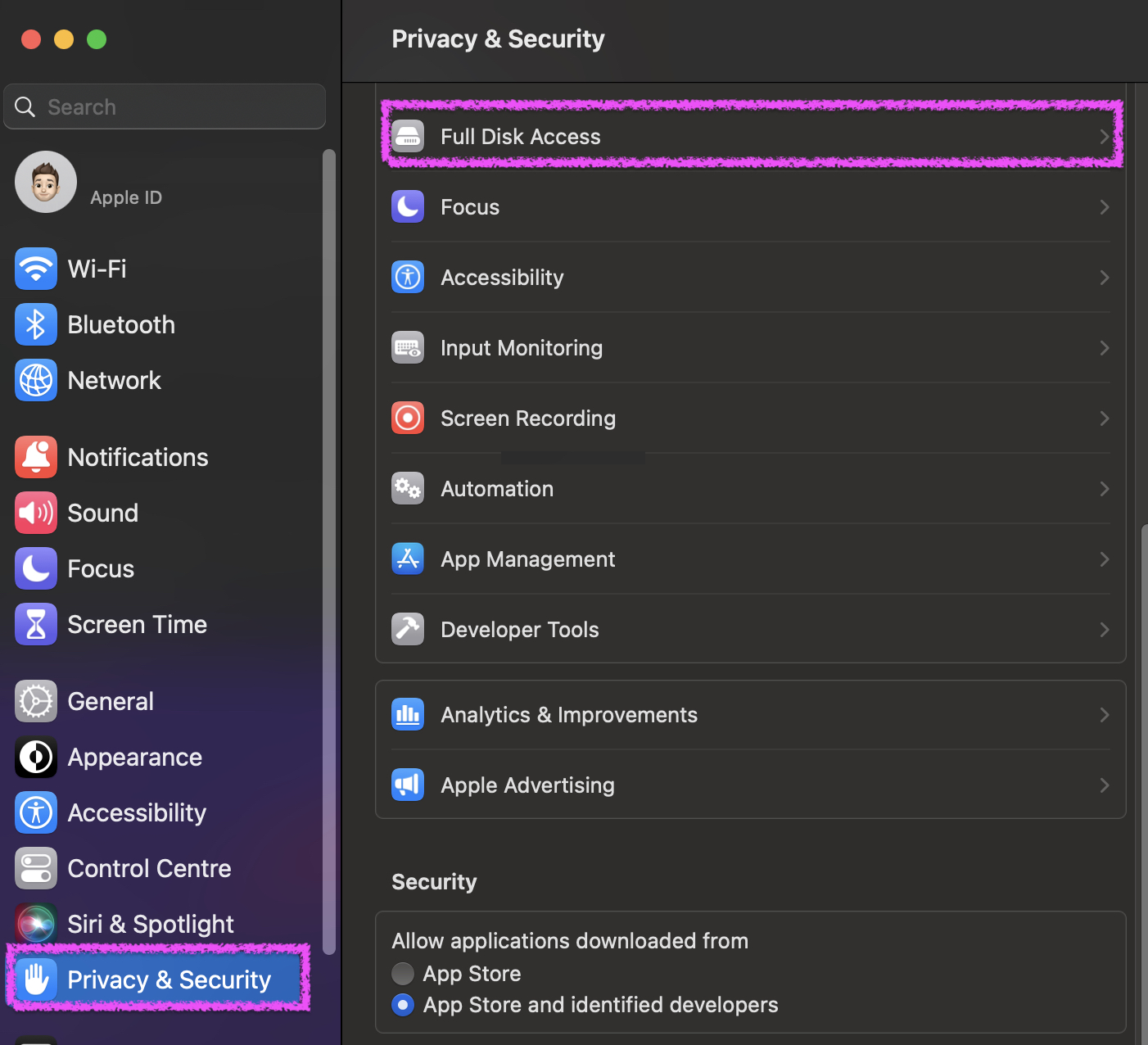
You need to enable the asgard2-agent-service slider:

Note
Starting with version Tahoe 26, we noticed that macOS no longer displays the entry asgard2-agent-service in the Full Disk Access UI.
This has been fixed with version Tahoe 26.3.