3.11. Aurora
A quick summary of what Aurora is:
lightweight endpoint agent for Windows
applies Sigma rules and IOCs on local event streams
uses Event Tracing for Windows (ETW) to subscribe to certain pre-configured event channels
extends the Sigma standard with so-called "response actions", which can get executed after a rule matches
supports multiple output channels: the Windows Eventlog, a log file and remote syslog.
Its documentation can be found here.
3.11.1. Aurora Overview
Under Service Control > Aurora > Asset View (Deployed) the overview
of all assets with Aurora installed can be seen here. Clicking on the entry opens a
drop-down menu with details and additional information.

Aurora Asset View
3.11.2. Deploy Aurora on Asset
You can als see an overview of all assets without Aurora installed under
Service Control > Aurora > Asset View (Not Deployed) and install
Aurora using the Deploy Aurora button. Those are all the assets which
have the service controller installed, but the Aurora deployment was not done
yet.
3.11.3. Change Service for an Asset
To change the Aurora configuration of an asset, navigate to Service Control
> Aurora > Asset View (Deployed), select the asset's checkbox and choose
> Change Aurora Configuration. Then choose the desired service configuration
> by clicking Assign and Restart.
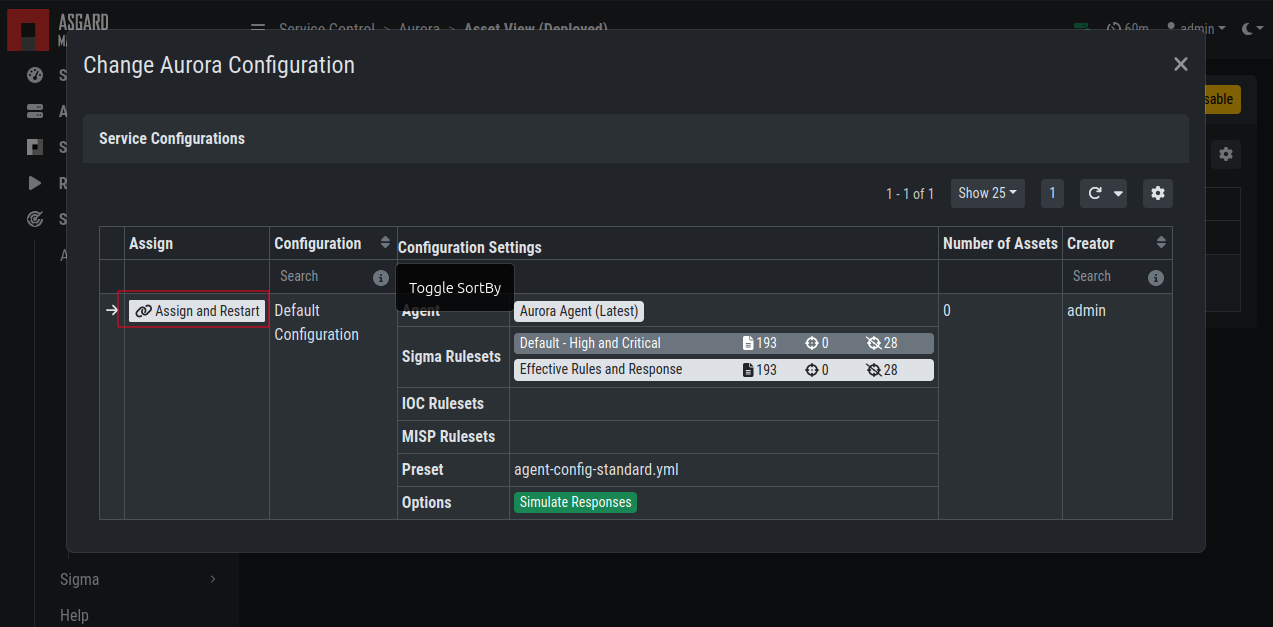
Change Aurora Service Configuration
If you want to enable or disable the Aurora service on an or more assets,
select them with the checkbox and use the Enable or Disable button.
Alternatively you can use the play or stop action icon on a single asset to
achieve the same.
3.11.4. Create a Custom Aurora Configuration
Go to Service Control > Aurora > Configurations > Add Configuration,
enter a name and add the rulesets that should apply for this service configuration.
No rulesets is a viable option, if you only want to use the non-sigma matching modules.
You don't need to edit any other option as sane defaults are given.

Create a Custom Aurora Configuration
3.11.5. Process Excludes
If Aurora uses too much CPU cycles, the most common reason is a heavy event
producer on the system (e.g. anti virus or communication software). In order
to analyze the issue and define process exclusions, go to Service Control >
Aurora > Process Exclusions

Define Aurora Process Exclusion
An overview over the top event producing processes is given on the bottom
of the section. Another possibility is to download a
Aurora Diagnostics Pack
and look in the status.txt at the event statistics by process.
3.11.6. False Positive Filters
If needed, false positives can be globally defined on all Aurora agents
at Service Control > Aurora > False Positive Filters. It is
recommended to filter false positives at Service Control > Sigma >
Rules and filter the false positives on a rule level using the "edit false
positive" action (funnel icon). For more details see
False Positive Tuning of Sigma Rules. If this is
not possible, because you need a quick fix and multiple rules are affected,
the global false positive filter can help.

Define Global Aurora False Positive Filters
Warning
A too permissive filter will greatly reduce Aurora's detection and response capabilities.
3.11.7. Response Action Logs
You can view an overview and the logs of the Aurora response and simulated
response actions under Service Control > Aurora > Response Action Logs.

Aurora Response Action Logs
3.11.8. Best Practices for Managing Aurora
1. Install the ASGARD agent on the asset (see ASGARD Agent Deployment)
3. Deploy the Aurora Service on the asset using the [Default] Standard configuration with critical and high Sigma rules
4. configuration (see Deploy Aurora on Asset)
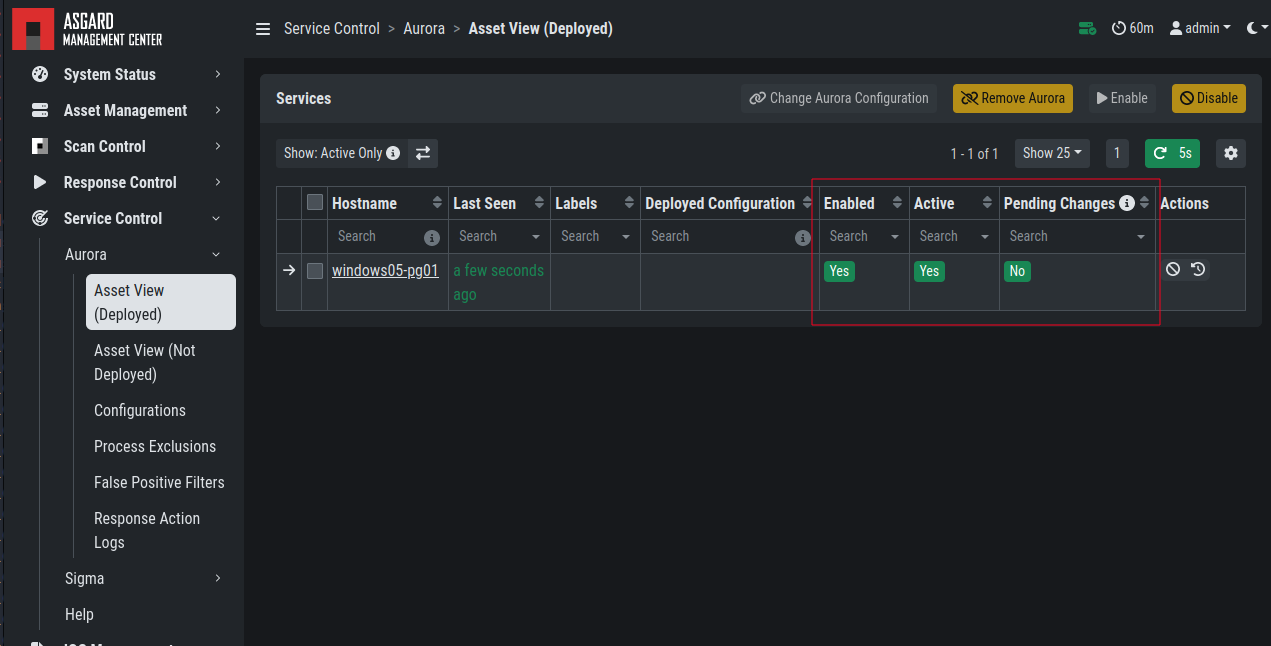
Aurora Service Successfully Deployed
If you want to enable the blocking capabilities of Aurora, we suggest to enable our included responses:
See the overview at
Service Control>Aurora>Configurations. TheEffective Rules and Responserow shows how many responses are active. By default no responses are active. See How to activate Responses.Do not directly activate the responses in production environments. Monitor your environment for at least a month with simulated responses to verify that no false positive matches occur.
In larger environments use different configurations and rulesets for different environments. As an example you can test changes to the configuration in a test environment, before adapting the changes for the production environment.
You can test the response functionality by entering the command
C:\Users\user>rundll32.exe AuroraFunctionTest.dll StartW
on the command line of an asset. As a result you should see following
message in the Service Control > Aurora > Response Action Logs:

Aurora Simulated Response Action
More tests are available from the
Function Tests section of the Aurora manual.
Those tests only generate detection events but no responses. If your ASGARD Management
Center is connected to an Analysis Cockpit, you can see the detection events at Events >
Aurora Events or in the Windows EventLog of the asset.