Sigma is a generic and open signature format that allows you to
describe relevant log events in a straightforward manner. The rule
format is very flexible, easy to write and applicable to any type
of log file. The main purpose of this project is to provide a
structured form in which researchers or analysts can describe their
once developed detection methods and make them shareable with others.
Sigma is for log files what Snort is for network traffic and
YARA is for files.
Rulesets are used to group rules to manageable units. As an asset
can only have one service configuration, rulesets are used to determine
which rules are used in which service configuration. There exist default
rulesets for high and critical Sigma rules. If you want to create a
custom ruleset go to ServiceControl > Sigma > Rulesets > CreateRuleset.
If you have chosen that new Sigma rules should be added automatically
to the new ruleset, they will be added now. If you didn't set any Sigma
levels to automatically add to this rule, you now need to add the desired
rules manually by going to ServiceControl > Sigma > Rules.
Choose the rules that should be added to this ruleset by selecting the
checkboxes and then AddtoRuleset. A rule can be assigned to multiple
rulesets.
You need to commit and push your changes after editing a ruleset.
ASGARD has to restart the service controller to read new configurations.
In order to prevent multiple restarts in the case of an admin performing
several configuration changes in succession, the admin has to initiate
the reloading of the new configuration by going to ServiceControl >
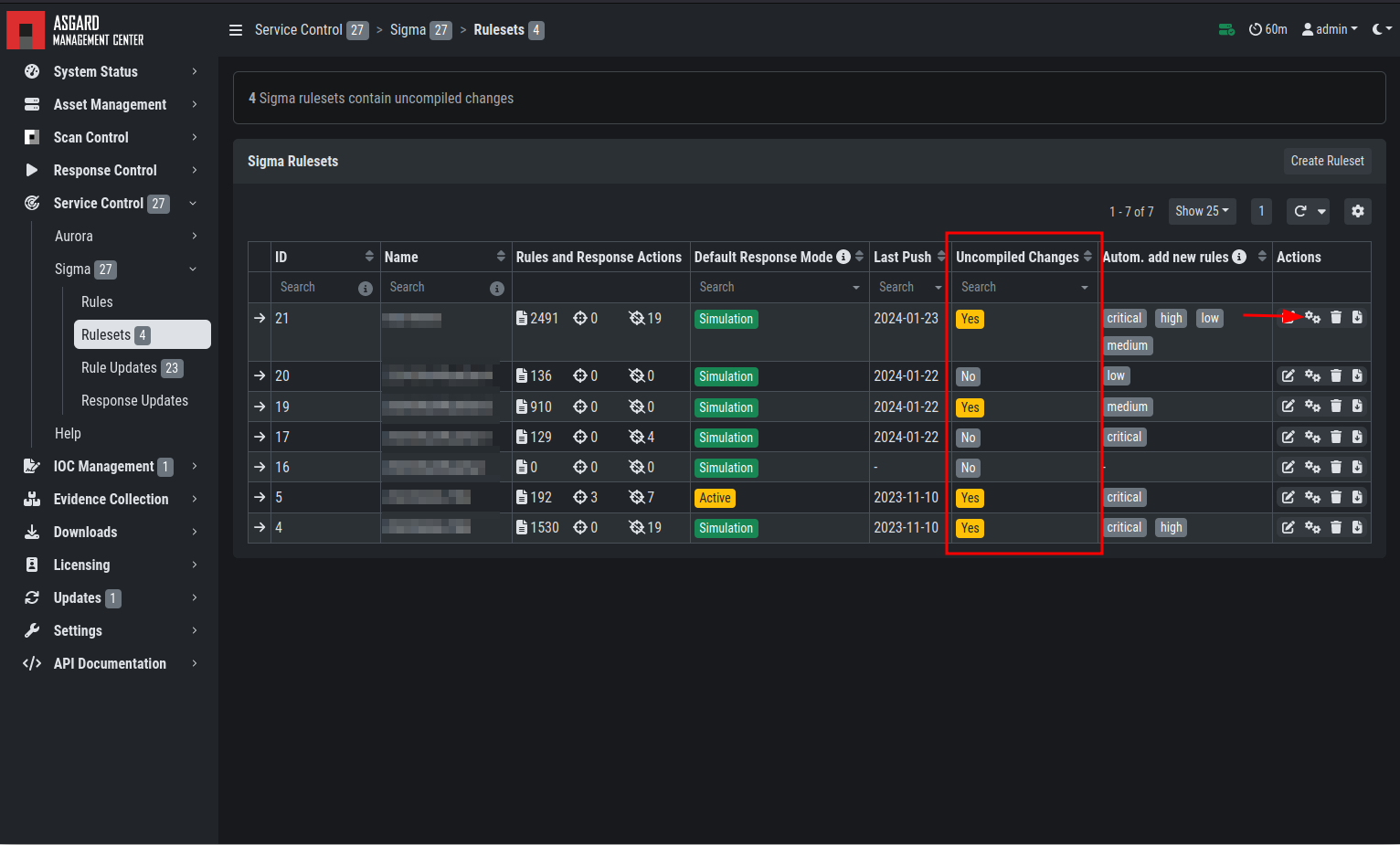
Sigma > Rulesets and performing the Compile ruleset action
(gear wheels). The need for compiling is indicated in the Uncompiled Changes
column.
It is not advised to enable all available rules on an asset. We suggest
to start with all "critical" and then advance to all "high" rules. We
already provide a default ruleset for those two levels for you to use.
"Medium" rules should not be enabled in bulk, and "low"/"informational"
at all . Single medium rules, which increase an organization's detection
coverage and do not trigger a bigger number of false positives, can be added
to the active configuration, but should be tested rule by rule.
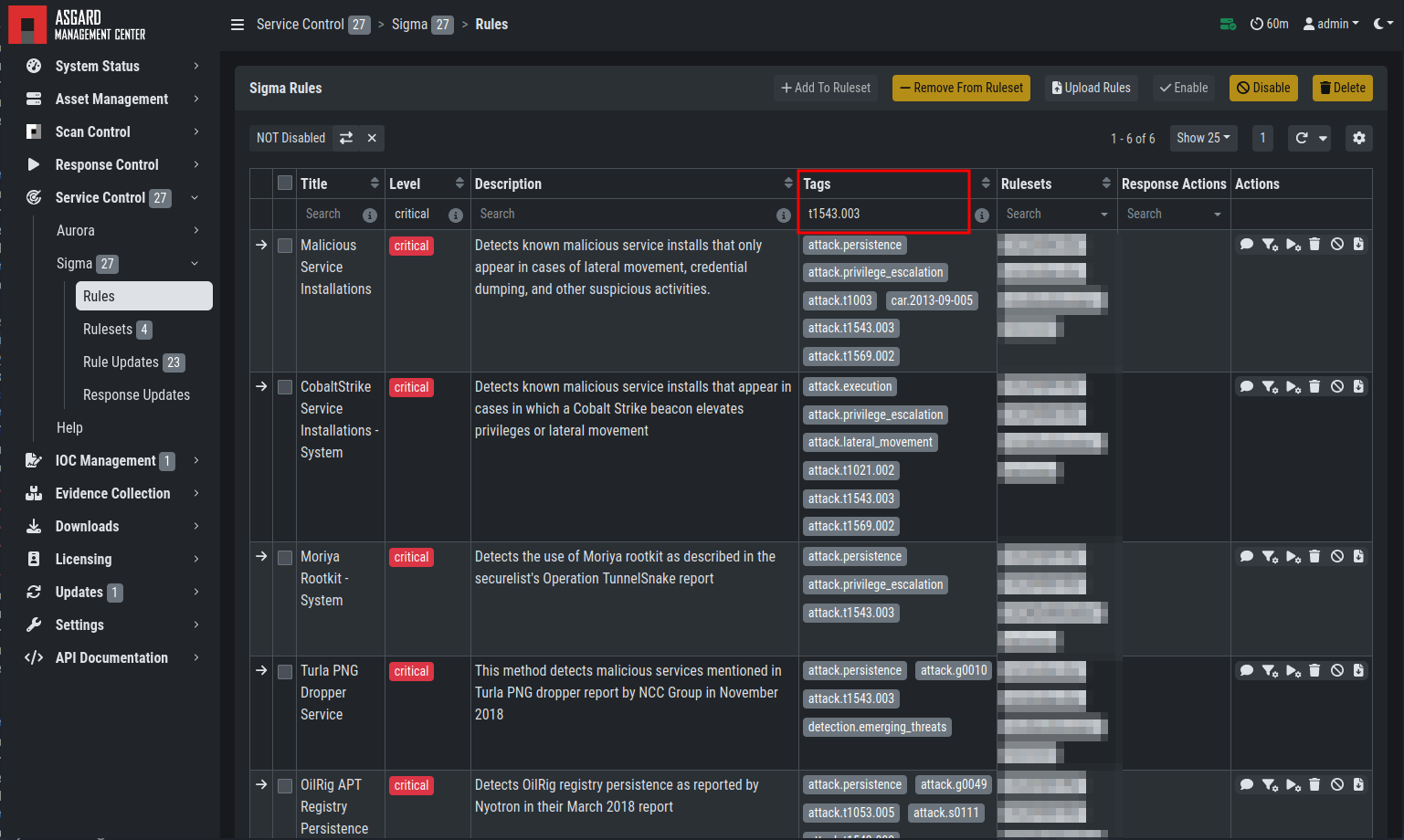
In order to easily add rules to a ruleset you can use the column filters
to select the desired rules and add the bulk to a ruleset. As an example
you can add all rules of level "critical" to a ruleset:
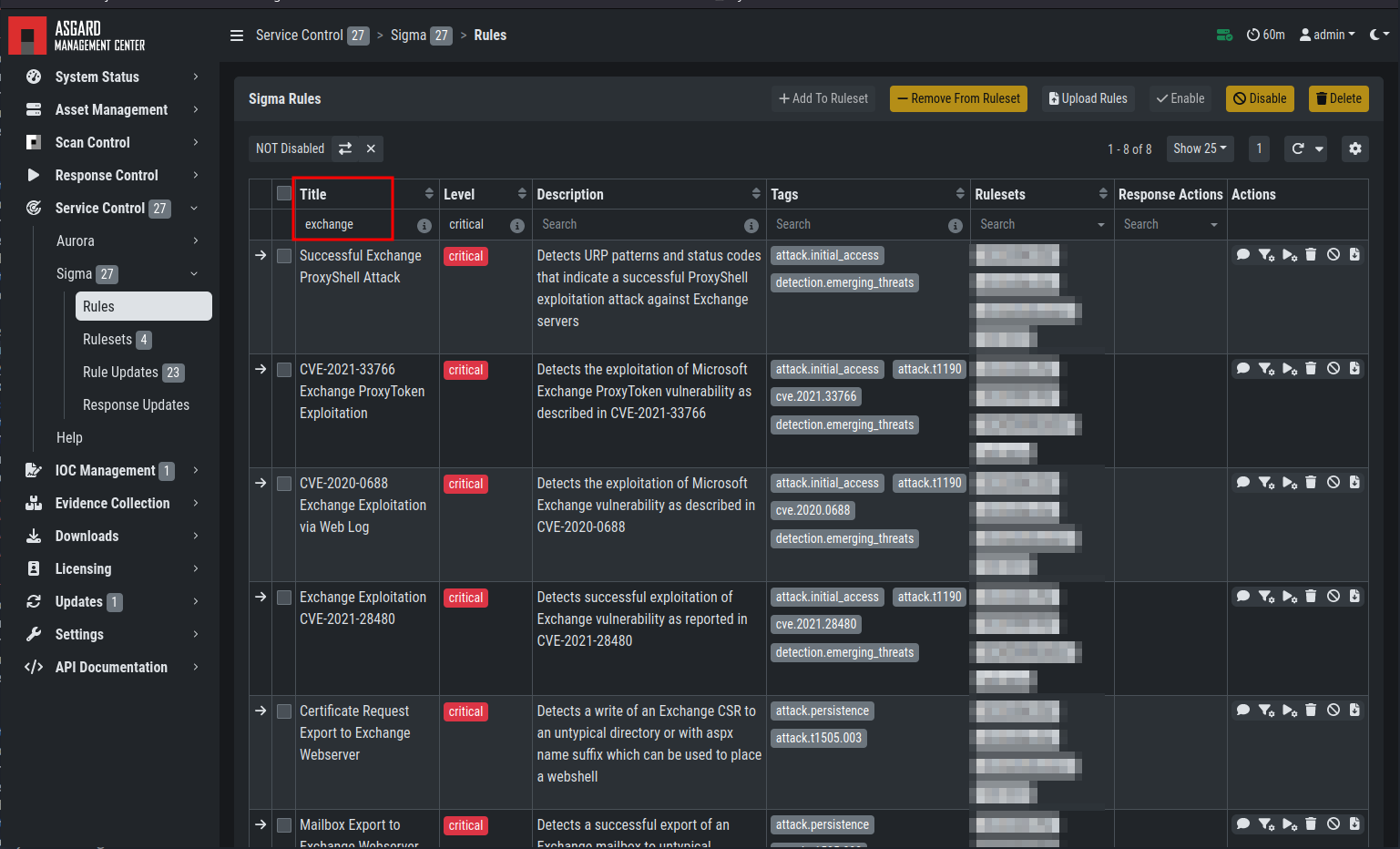
Or you can just search the title or description field of the rules. You can also search
the rule itself using the "Rule" column. (the "Rule" column is not shown by default and
has to be added using the gear wheel button).
Not every environment is the same. It is expected that some rules will trigger false
positive matches in your environment. You have
multiple options to tackle that issue.
If it is a general false positive, probably not only occurring in your environment,
consider reporting it at as a Github issue
or e-mail to us at rules@nextron-systems.com. We
will take care of the tuning for you and your peers.
If the false positive is specific to your environment, you can tune single Sigma rules
at ServiceControl > Sigma > Rules, filter for the rule in question and
choose the "Edit false positive filters of this rule" action. Here you can do simple
rule tunings on your own. By clicking the AddFalsePositiveFilter button you can
add single lines that filter the event for false positives (i.e. they are OR-connected
meaning: "Do not match the event if any of those lines matches). They are applied on top
of the rule logic and persist automatic rule updates.
Example of the false positive tuning of a Sigma rule
To see the resulting rule you can click the "Show Preview" button or look at the
"Compiled Rule" row in the rule's drop down menu.
If you want to review the tuned rules: To filter for all rules containing a custom
false positive tuning, you have to add the "Filters" column to your view (gear wheels
icon) and show all non-empty rows by using the NOT- column filter.
If the rule is adding too much noise and tuning is not sensible, you can remove the
rule from the ruleset for a subset of your machines (maybe you need to define and use
a separate ruleset for that use-case) or you can disable the rule altogether. This
is done using the Disablethisrule action of the rule. Disabling the rule affects the rule in all rulesets.
After tuning a rule, the rulesets using that rule have to be re-compiled at ServiceControl > Sigma > Rulesets.
Custom rules can be added using the sigma format complying with the
specification. You can
upload single files or a ZIP compressed archive. This can be done at
ServiceControl > Sigma > Rules > UploadRules.
If new rules or rule updates are provides by the Aurora signatures, the updates
have to be applied by the user manually in order to be affecting Aurora agents
managed by ASGARD. An indicator is shown in the WebUI and the rules changes can
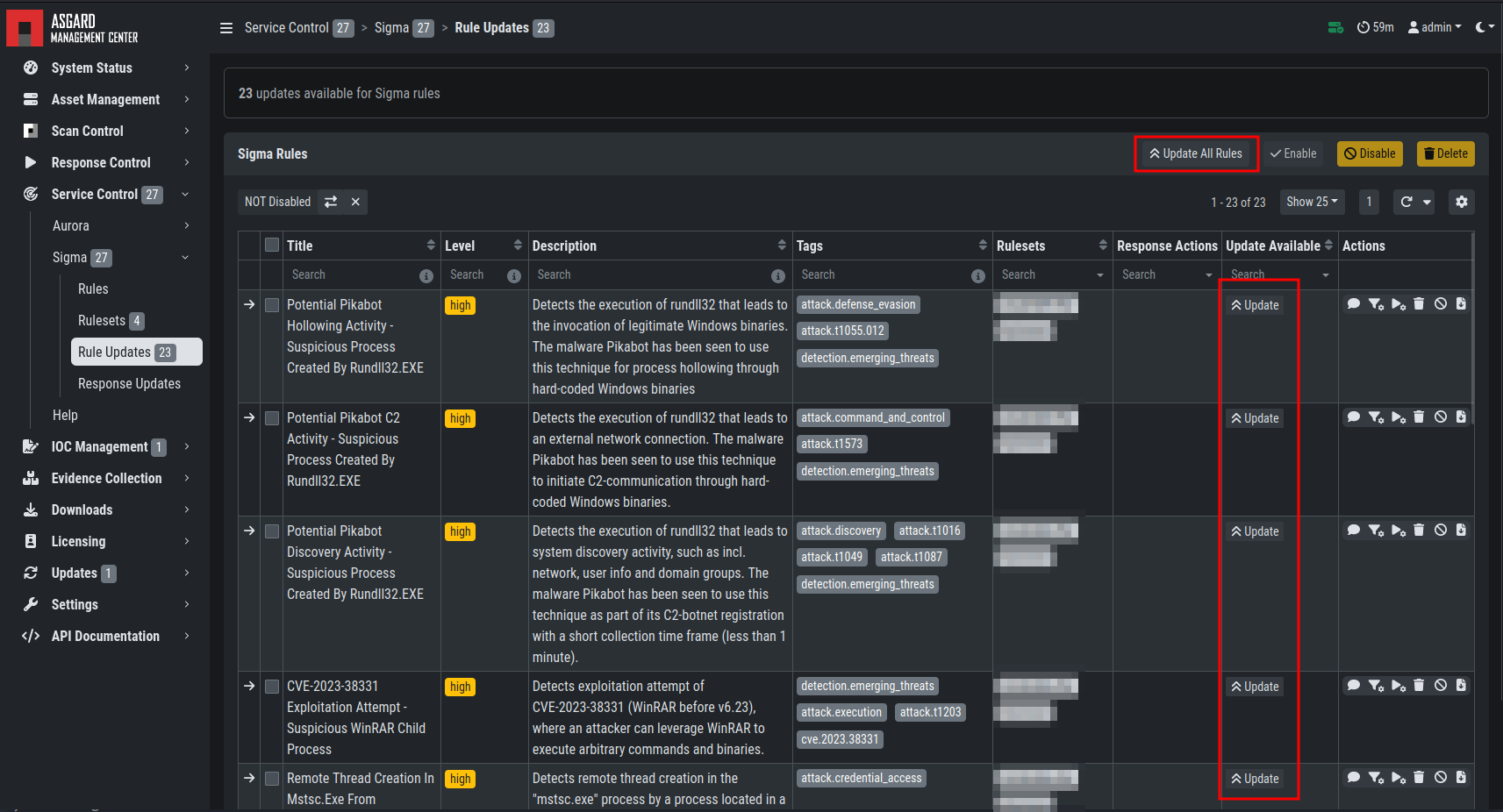
be reviewed and applied at ServiceControl > Sigma > RuleUpdates.
Clicking on the Update button in the "Update Available" column opens a diff
view in which the changes are shown and where the user can apply or discard the
changes. If you do not need to review each single change, you can apply all
changes using the UpdateAllRules button.
Analogous the updates of response actions can be viewed and applied at
ServiceControl > Sigma > ResponseUpdates.
As a fail safe and for administration purposes, responses are generally
only simulated if not explicitly set to active.
This has to be done on different levels:
Service configuration level
Ruleset configuration level (on updates)
Ruleset rule level
If on one level a rule is simulated, it will not execute the response
actions but only generate a log line that describes the action that
would have been performed. You can see an overview of the state of all
responses in the ServiceControl > Aurora > Configurations menu.
indicates whether responses are activated on configuration level. Edit the configuration to change it.
indicates how many rules are only simulated in that ruleset (or in sum).
indicates how many rules have active responses in that ruleset (or in sum)
To change the status of a response in the ruleset click the ruleset link.
You can view all simulated or all active responses. Use the checkbox and
the button in the upper right to switch the response status of the rules
between active and simulated.
The default response mode of a ruleset is important for the
behavior of response updates. It can be seen at ServiceControl >
Sigma > Rulesets in the DefaultResponseMode column.
If "Simulation" is selected, response actions of new and updated rules
will be put in simulation mode. If "Active" is selected, new rules will
automatically be put in active mode and updated rules will not change
their current response mode. We advise to leave the default response
mode in "Simulation" mode.