3.4. Asset Management
In the Assets view you can see all the connected ASGARD
agents. New assets will be placed under Asset Requests and need a
manual approval before being able to connect to your ASGARD (for auto
accept see Advanced Settings).
If the Duplicate Assets view is visible, you should try to remediate
the issues in a timely manner, since this might cause unwanted side
effects on the duplicate hosts.
Warning
Assets in the Duplicate Assets view indicate that one or more
agents are running on multiple endpoints. This might be caused by
cloning a system with an already installed ASGARD Agent. Undesirable
side effects of duplicate assets are alternating hostnames and tasks
that fail immediately.
For remediation please see Duplicate Assets Remediation
3.4.1. Asset Overview
Management of all endpoints registered with ASGARD can be performed in Asset Management. The assets will be presented as a table with an individual ASGARD ID, their IP addresses and host names.

Asset View
By clicking the control buttons in the Actions column, you can start a new scan, run a response playbook, open a command line or browse the remote file system.
Note
Depending on the user's role, some of the control buttons may be disabled
The
Run Scanbutton might be greyed out in new installations - this is because the ASGARD Management Center did not download the THOR packages yet. You can either wait for a few minutes, or see the chapter Updates of THOR and THOR Signatures, to trigger a download manually.
3.4.2. Asset Labels
Labels are used to group assets. These groups can then be used in scans or tasks.
You can add multiple labels to an asset or a group of assets. This is done by
selecting the particular assets in the left column, typing the label name
(e.g. New_Label) and clicking the blue Add Labels button.
Note
Don't use labels with white space characters as it could cause issues in syncs with your Analysis Cockpit, exports/imports or other underlying legacy functions.
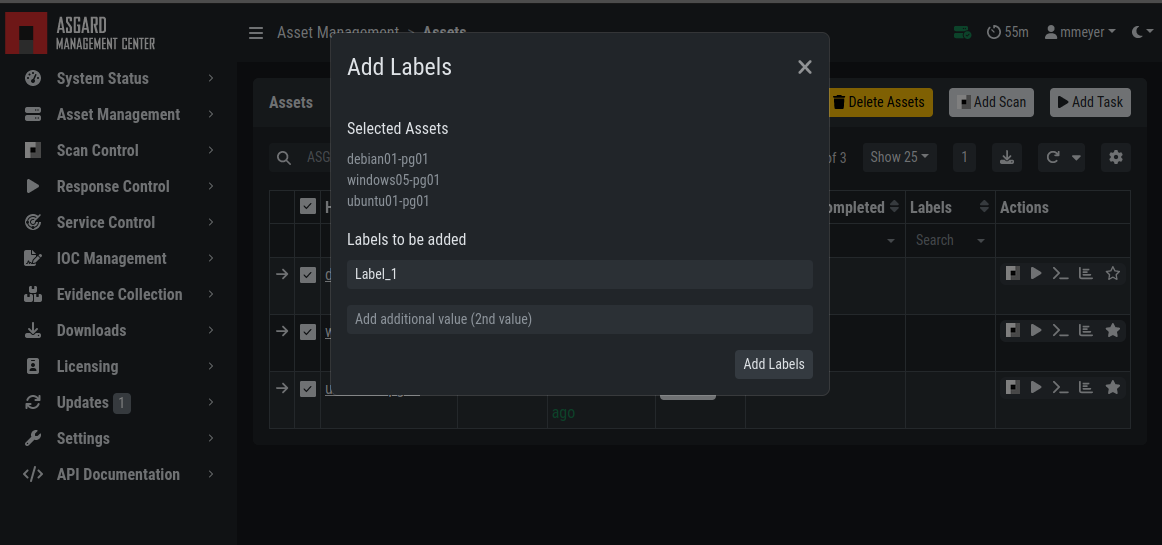
Add labels
In order to remove labels, select your assets, click the yellow Remove Labels
button and type the name of the label you want to remove for these assets.
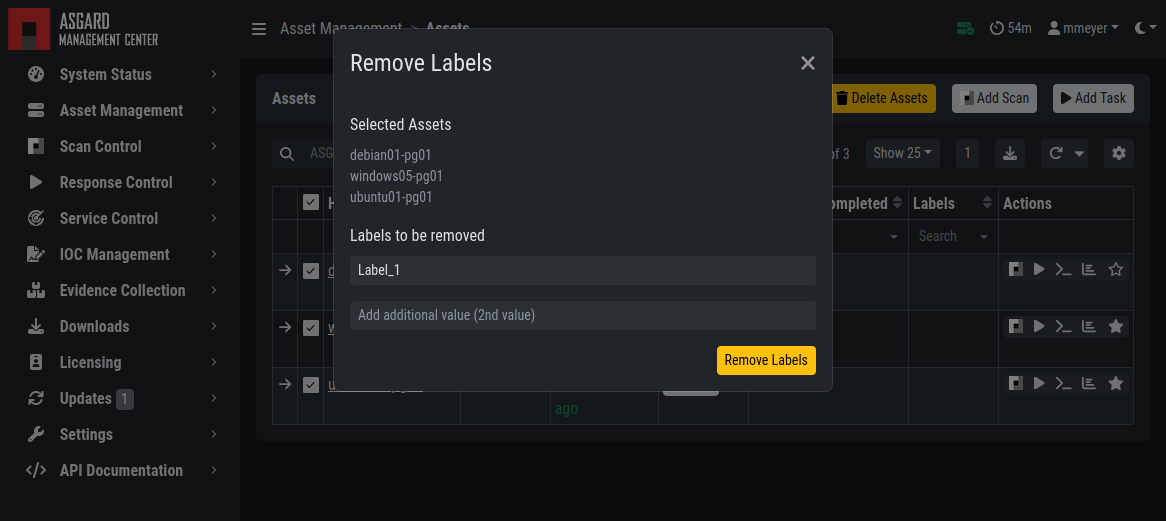
Remove labels
The asset management section has extensive filtering capabilities, e.g. it is easy to select only Linux endpoints that have been online today and have a particular label assigned.
3.4.2.1. Export Asset List
The Import/Export Section allows you to export your assets to a CSV formatted file.
3.4.2.2. Import Labels
The import function allows you to add or remove labels on assets based on columns in the previously generated CSV formatted file.
Note
This function is not available in the Master ASGARD.
The import function processes the values in the columns Add Labels ... and Remove Labels ...
only. In order to change labels, use the already exported list, add values in these
columns and re-import it by using the Apply Labels from CSV button.
Separate multiple labels with comma. Leading or ending white space characters
will be stripped from the labels.

Asset Labeling via CSV
3.4.3. ASGARD Search Query
You can search for Assets in your Management Center with the ASGARD Search Query.
This allows you to write more complex queries to search for assets. Additionally,
this helps you to be more flexible with your scan/response tasks, since you can
just specify a query and not set labels for all assets first. A good example of
this might be if you want to scan a specific subnet every week, and a new
agent is being deployed in this subnet. You don't have to think of all the
labels or troubleshoot why scans are not being deployed. One example you
could achieve this with is the following query:
system = "linux" and interfaces = "172.16.50.0/24"
This would run the task on all linux systems in the subnet 172.16.50.0/24.
The following operators are available:
Operator |
Example |
|---|---|
Equals |
hostname = "win10-dev" |
Equals |
cpu_count = 1 |
Contains |
hostname contains "win" |
Begins With |
hostname begins with "win" |
Ends With |
hostname ends with "dev" |
Numerical Comparison |
total_memory >= 4 GB |
Numerical Comparison |
last_seen < 3 days ago (assets that have not been seen since 3 days) |
Numerical Comparison |
last_seen > 1 hour ago (assets that have been seen in the last hour) |
Numerical Comparison |
last_scan_completed < 2022-08-17 (assets that have not been scanned since 2022-08-17) |
Numerical Comparison |
last_scan_completed < 2022-08-17 15:00:00 (assets that have not been scanned since 2022-08-17 15:00:00) |
Numerical Comparison |
last_scan_completed is never |
Boolean |
is_domain_controller is true |
Boolean |
nextping is true (shows all assets with Fast Poll enabled) |
Not |
not hostname contains "win" |
Not |
not hostname ends with "dev" |
And |
hostname contains "win" and not hostname ends with "dev" |
Or |
hostname begins with "dev" or hostname ends with "dev" |
Nested |
hostname ends with "dev" and (hostname contains "win" or hostname contains "lin") |
Set / Not Set |
labels is set (assets that have at least one label) |
Set / Not Set |
labels is not set (assets that have no labels) |
Regular Expression |
hostname matches "^[a-z0-9]{(0,6)}$" |
Pattern |
Use _ to match any single character and % to match an arbitrary number of characters, including zero characters. |
Pattern |
arch like "a__64" (matches amd64 and arm64, but not aarch64) |
Pattern |
arch like "%64" (all 64 bit systems, e.g. amd64, arm64, aarch64 or ppc64) |
IP Range |
interfaces = "172.28.30.0/24" |
You can create simple or complex queries this way. You can group/separate queries with brackets:
(system = "linux" and interfaces = "172.28.30.0/24") or (system = "windows" and interfaces = "172.28.50.0/24")
(system = "linux" and interfaces = "172.28.30.0/24" and labels = "my-label") or labels = "robot-test"
The following keys for the asset query are available:
Key |
Column Name |
|---|---|
arch |
Arch |
client |
Agent Version |
client_sc |
Service Controller Version |
first_seen |
First Seen |
fqdn |
FQDN |
hostname |
Hostname |
id |
ID |
interfaces |
Network Interfaces |
is_domain_controller |
DC |
labels |
Labels |
last_scan_completed |
Last Scan Completed |
last_seen_agent |
Last Seen Agent |
last_seen |
Last Seen |
last_seen_sc |
Last Seen Service Controller |
nextping |
Fast Poll |
ping_interval |
Poll Interval |
system |
OS |
total_memory |
Total Memory |
uptime |
Uptime |
version |
OS Version |
Hint
You can see which query-name a field has by enabling the column in your asset view and clicking into the query text field:

The ASGARD Search Query is the preferred tool to manage scans and assets. If you are using the Analysis Cockpit and need to labels, you can still use them.
3.4.4. Asset Migration
Hint
You have to enable the option Show Response Control Advanced Tasks
in the Settings > Advanced section of your ASGARD Management
Center to allow Asset Migration.
You can move an asset from one Management Center to another via the Maintenance
Module of the Response Control. To do this, navigate to Assets and select the
assets you want to migrate. Alternatively you can navigate to Response Control
and add a new task. You can now click the Add Task button to open the Task Menu.
Choose the Maintenance module and then the Move asset to another ASGARD Type.
You have to upload an agent installer from the ASGARD you want to migrate the asset to.
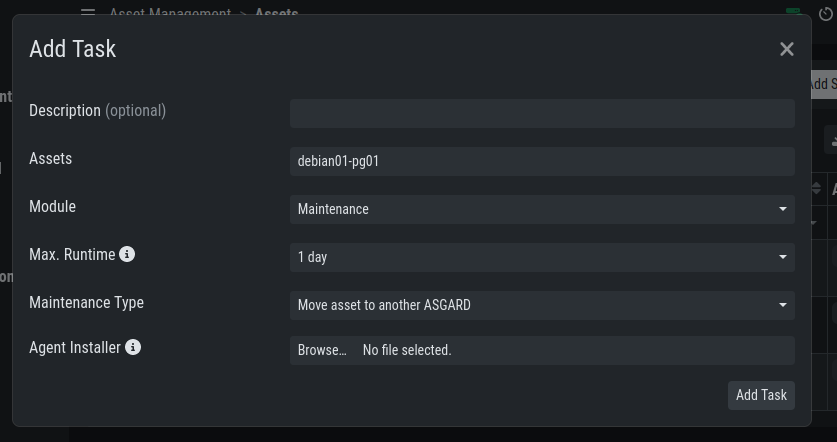
Note
The target OS or Arch of the installer doesn't matter, we will only use the installers configuration data for the migration.
The task will fail if the migrated asset is unable to communicate with the new Management Center. In this case, the asset will remain on the Management Center which issued the migration task. Only the asset will be migrated (it shows up as a brand new asset on your new Management Center), no scan or response tasks and also no logs will be migrated.
3.4.5. Delete Assets
Deleting assets will remove the assets from the Active Only asset view and will
invalidate the authentication for those assets.
To delete an asset, go to the Assets View and mark the assets you want
to delete. Click the Delete Assets Button on the top right corner. Confirm that
you want to delete the assets.
To see all the deleted assets, change your view from Active Only to Deleted Only.
Warning
Deleted assets can no longer communicate with the ASGARD. Please use with caution. This cannot be undone, you have to manually fix the asset.

Deleted Assets View