9.6. Bypass Apple verification during installation of asgard2-agent
This section aims to describe possible workarounds, intended to be a
reference for IT administrators or IT packaging teams to bypass Apple
verifications and install the personalized asgard2-agents on macOS
Big Sur (or newer) workstations.
9.6.1. Starting with macOS 15
Option 1: Remove the quarantine flag from the ASGARD Agent installer via terminal session
MacBook-Pro:~ nextron$ sudo xattr -rd com.apple.quarantine /Users/nextron/Downloads/asgard2-agent-macos-arm64.pkg
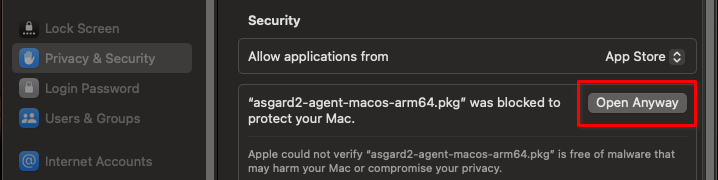
Option 2: Unblock the installer via the Security Settings
Navigate to
System Settings>Privacy & Security>SecurityClick on button
Open anywaynext toasgard2-agent-macos-arm64.pkg ...
9.6.2. Before macOS 15
Warning
Executing this workaround puts your system at risk for a short period of time. It will deactivate global security mechanisms of the operating system, which are intended to protect the integrity of the system. Please make sure to follow the below steps carefully and enable those security mechanisms after you are done.
Please always keep in mind to check your system after performing any of the described actions, to ensure that all security mechanisms are in place and are re-activated after performing the described actions.
Please follow the below steps to install the ASGARD Agent on macOS.
Open a new terminal session
Deactivate macOS Gatekeeper
sudo spctl --master-disable
Close the terminal and open a new terminal session
Install the asgard2-agent
sudo installer -pkg /path/to/asgard2-agent-macos-amd64.pkg -target /
Close the terminal and open a new terminal session
Reactivate macOS Gatekeeper
sudo spctl --master-enable
Warning
Make sure to activate the macOS Gatekeeper once you are done:
sudo spctl --master-enable
You can verify the state of the macOS Gatekeeper with:
MacBook-Pro:~ nextron$ spctl --status
assessments enabled
On a system with activated Gatekeeper, the output has to be assessments enabled.