3.7. Scan a Group of Systems
A group scan is a scan task which is assigned to one or more asset. You define conditions, which can either be labels or the ASGARD Search Query, to specify which assets should be scanned. Group scans are used to assign identical scans (in terms of settings and configuration) to multiple assets.
3.7.1. Create Group Scans
A scan for a group of systems can be created in the Scan Control > Group Scans
tab. Click the Add Group Scan button in the upper right corner.

Scan Control – Create Group Scan
As with the single scans, various parameters can be set. Aside from the already mentioned parameters, you can also configure the following:
Parameter |
Value |
|---|---|
Description |
Freely selectable and optional name for the group scan |
Scan Target |
Define which assets should be scanned with this group scan.
You can either use the |
Expires |
After this time frame, no scan orders will be issued to the connected agents. |
Scheduled Start |
Select a date for a scheduled start of the scan. |
Limit |
This specifies the maximum scans this group scan is assigning. Once the
limit is reached, no more scans will be issued. Therefore you need to set
a limit higher than the number of hosts you want to scan or enter |
Rate |
The rate at which new scans are being issued by the ASGARD. You can control network load with this option, since a scan also means that the asset needs to download THOR from the ASGARD. We recommend to use this parameter in virtualized and oversubscribed environments in order to limit the number of parallel scans on your endpoints. |
Max. Concurrent Scans |
Limits the number of concurrent scans running at once. When the limit is reached, no new scans will be started until one of the running scans is completed or failed. |
Max. Runtime |
A started scan is cancelled after exceeding the maximum runtime. This is used to stop any hanging/unresponsive scans. |
Once you are done configuring your group scan, you can either Add the Group Scan or Add and Activate the Group Scan. Only adding the group scan without activating it will "park" it until it has been activated - at which point scans will be issued.
3.7.2. List of all Group Scans
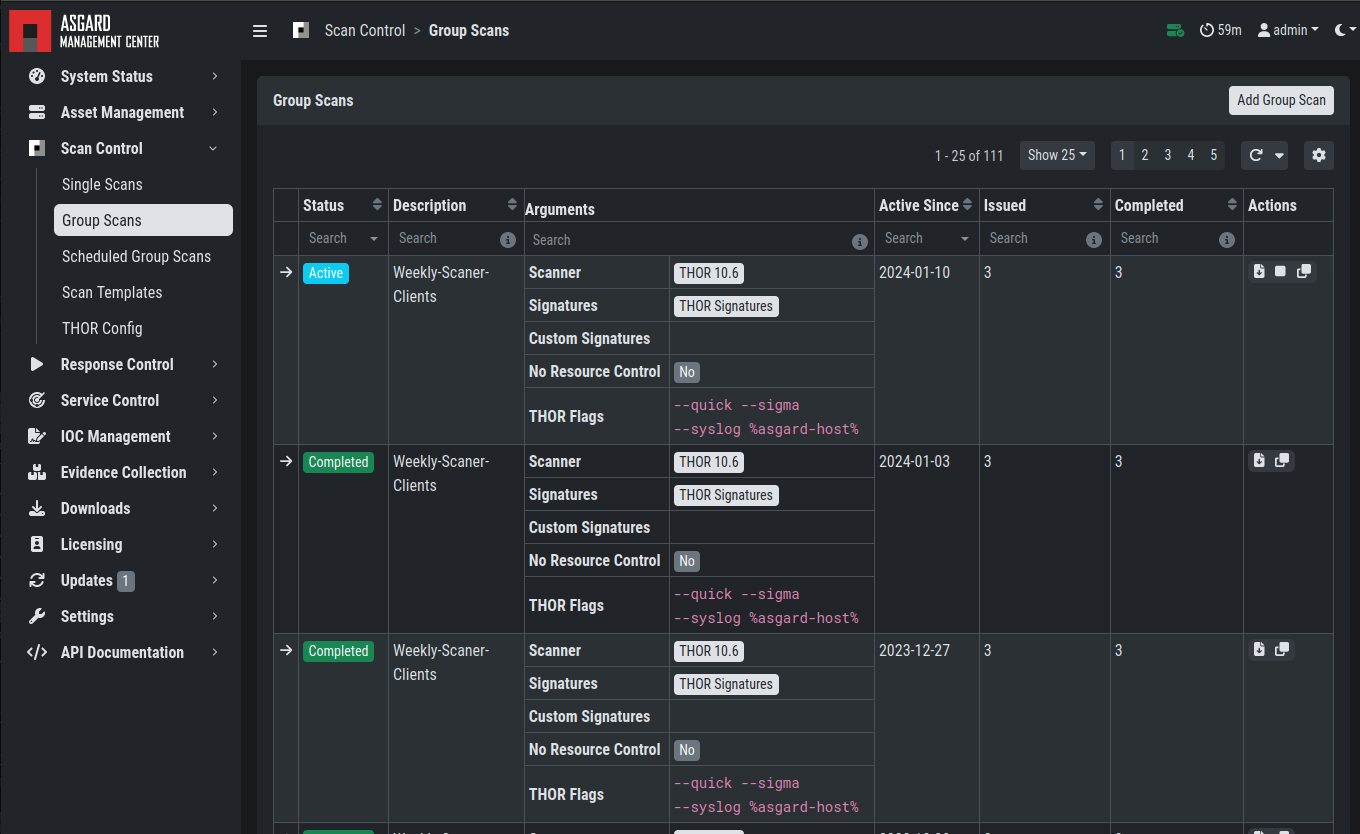
The list of all group scans contains, among other items, the unique Scan-ID and the name.
Scan Control – Group Scans – List
In addition, information can be found about the chosen scanner, the chosen parameters, the start and completion times and the affected assets (defined by labels). Additional columns can be added by clicking on "Column Visibility".
The Status field can have the following values:
Status |
Value |
|---|---|
Paused |
The group scan has not yet started. Either click play or wait for the scheduled start date (the job will start in a 5 minute window around the scheduled time). |
Active |
Scan is started, ASGARD will issue scans with the given parameters. |
Inactive |
No additional scan jobs are being issued. All single scans that are currently running will continue to do so. |
Completed |
The group scan is completed. No further scan jobs will be issued. |
3.7.3. Starting a Group Scan
A group scan can be started by clicking on the "play" button in the "Actions" column of a group scan. Subsequently, the scan will be listed as "Started".
3.7.4. Details of a Group Scan
Further information about a group scan can be observed from the detail side bar of the group scan. Click the arrow in the left column of the group scan you are interested in and the details section will appear on the right side of the window.

Scan Control – Group Scans – Details
Aside from information about the group scan in the "Details" tab, there is a graph that shows the number of assets started and how many assets have already completed the scan in the "Charts" tab. In the "Tasks" tab you get information about the scanned assets.