2.8. Install the ASGARD Management Center Service
The Nextron Universal Installer is a web-based installer
that guides you through the installation of ASGARD products.
The Nextron Universal Installer installs
one of the following products on your server (this manual
focuses on the ASGARD Management Center):
Hint
If you want to install Master ASGARD, use the correct
license and product (Master ASGARD)
in the Nextron Universal Installer.
ASGARD Management Center; alternatively if your license permits:
ASGARD Broker
ASGARD Gatekeeper
ASGARD Lobby
Master ASGARD
ASGARD Analysis Cockpit; alternatively:
Elasticsearch Cluster Node for ASGARD Analysis Cockpit
ASGARD Security Center, in the following variants:
ASGARD Security Center (Backend Only)
ASGARD Security Center (Frontend Only)
ASGARD Security Center (All-in-one, unrecommended)
Note
You can only install one product on one server because the products are not designed to coexist on the same server. The exception is ASGARD Security Center (All-in-one).
The installation takes roughly 5 to 15 minutes, depending on your Internet connection and the server on which you install the product.
If you encounter problems during installation, see Diagnostic Pack for further instructions.
2.8.1. Requirements
The ASGARD Management Center installation requires the following:
A valid license file for the ASGARD Management Center
A configured FQDN (with some exceptions, see Valid FQDN)
Internet access during installation (see Connectivity Check)
2.8.2. Installation
After the ISO installer finishes the setup, the console login prompt shows the following message:
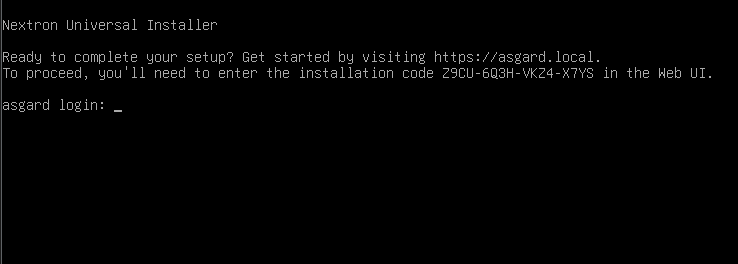
Follow the instructions and open the web page displayed on your console. Your browser will likely show a warning the first time you connect to the page. The page uses a self-signed certificate because it is only used to install ASGARD Management Center. You can ignore this warning and proceed to the page.
The Nextron Universal Installer first shows a short introduction. After
you click Next, the landing page of the Nextron Universal Installer
opens.

Enter the installation code from the terminal and click
Next. The installer then guides you through the
installation.
2.8.3. Connectivity Check
The Nextron Universal Installer tries to connect to our update server to download all required packages when the installation starts. Make sure you can reach the update servers (see Internet Access during Installation).
Configure your proxy settings if you are behind a proxy (see Proxy and NTP Settings).
2.8.4. Valid FQDN
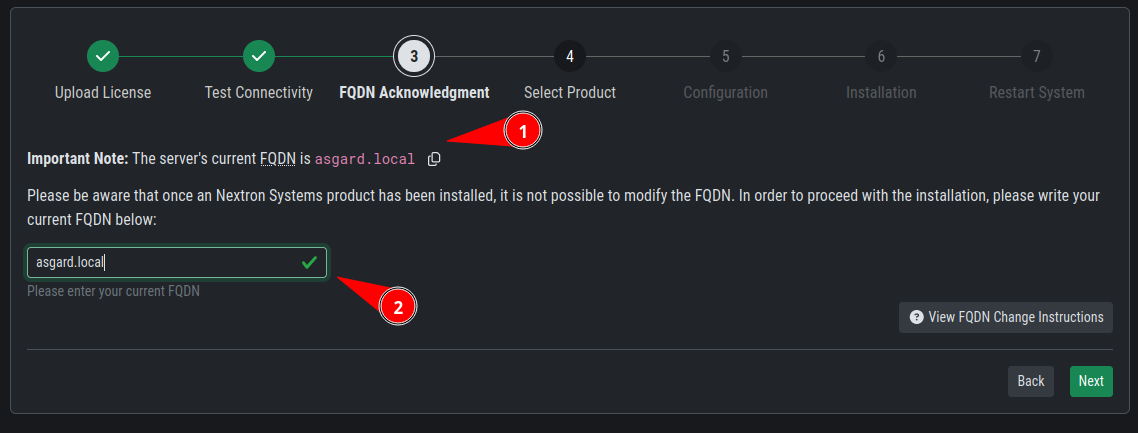
The Nextron Universal Installer prompts you to verify the FQDN that you configured during the base system installation (see Network Configuration). This is required so ASGARD Agents can communicate with ASGARD Management Center over HTTPS. Agents use the FQDN to connect to ASGARD Management Center and verify the certificate's Common Name. If there is a mismatch, agents cannot connect to ASGARD Management Center.
If the displayed FQDN is not correct, you can change it by
clicking the View FQDN Change Instructions button.
This will open a dialog with instructions on how to change
the FQDN of your server. Once you have changed the FQDN,
you can continue with the installation.
2.8.5. Proxy and NTP Settings
If you need to configure a proxy or change the NTP settings
of your system, click the Settings
button in the left menu of the Nextron Universal Installer.

If you configured a proxy during the ISO installation, those settings will be carried over into the Universal Installer. The settings will also be carried over into ASGARD Management Center. The same applies to NTP.
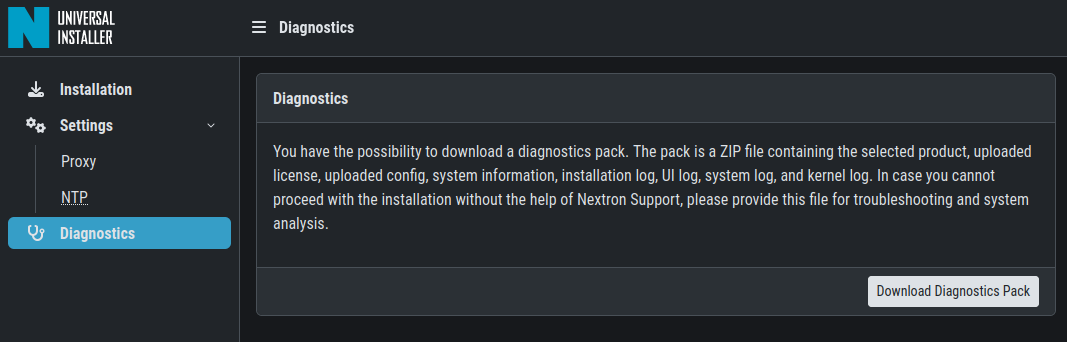
2.8.6. Diagnostic Pack
If errors or problems occur during installation, you can download a
diagnostic pack from the Diagnostics tab in the left menu of the
Nextron Universal Installer. Click Download Diagnostic Pack to
download the diagnostic pack. You can then send it to our support team
for further analysis.