4.1. Installation
Master ASGARD is a central management console for controlling multiple ASGARD systems. It centrally manages scans across your ASGARD systems and provides one central point for Response Playbooks, Evidence Collection, and IOC Management. A dedicated license is required.
To install Master ASGARD, use the Nextron Universal Installer. Follow the instructions in the following chapter: Install the ASGARD Management Center Service.
4.2. Hardware Requirements for Master ASGARD
Master ASGARD has the following hardware requirements:
Component |
Value |
|---|---|
System Memory |
16 GB |
Hard Disk |
1 TB |
CPU Cores |
8 |
4.3. License Management
Once you connect your ASGARD Management Centers to Master ASGARD, the licensing sections on connected ASGARD Management Centers become inactive. The local ASGARD license will be replaced with the Master ASGARD license. Every ASGARD can issue scanning licenses to assets as long as the total number of scanned servers and workstations does not exceed the number of systems in the Master license.
4.4. Setting up Master ASGARD
The setup procedure for Master ASGARD is identical to the setup procedure for ASGARD Management Center; see Setup Guide. The only difference is that you need to provide a Master ASGARD license file.
4.5. Link ASGARD Systems with Master ASGARD
On your ASGARD server, go to Settings > Master ASGARD, generate a
one-time code and copy it.
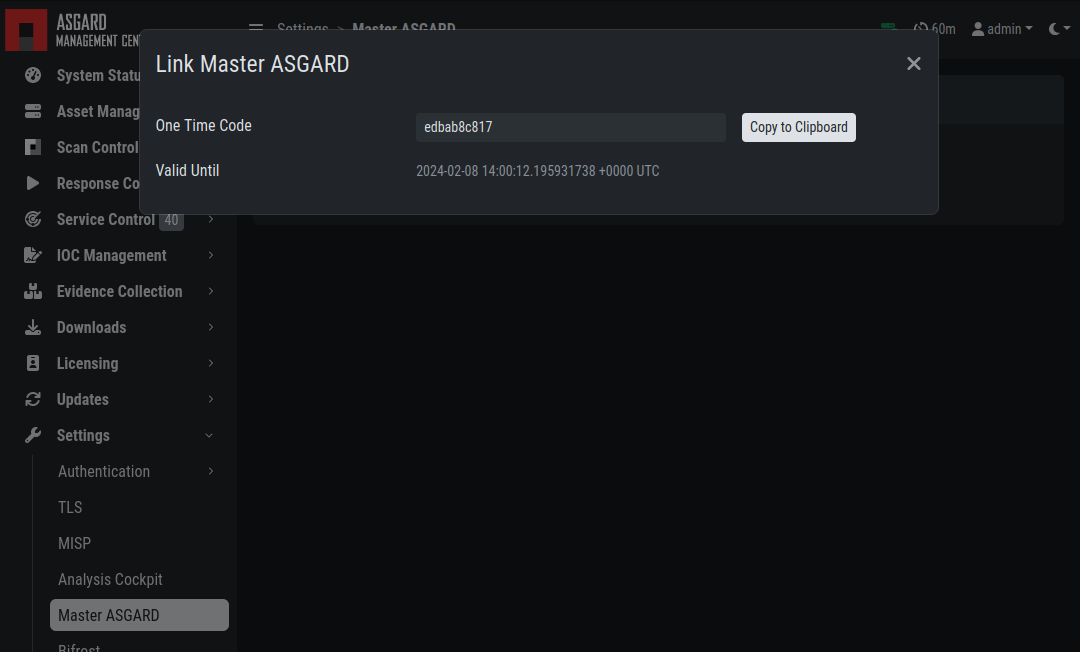
Generate One Time Token on ASGARD
In Master ASGARD go to Connected ASGARDs, click the Add ASGARD
button in the upper-right corner, and use the hostname and one-time token to
connect that ASGARD system. You can use a description to provide more
information about that ASGARD server, e.g. DMZ 1 or Region EMEA - HQ 1.
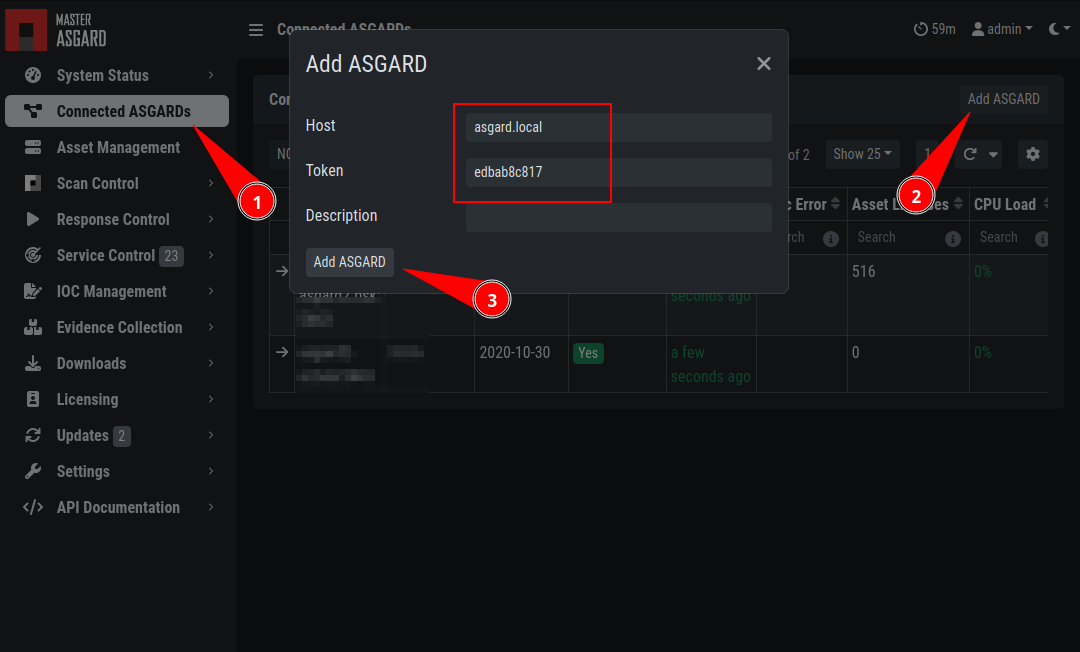
Link ASGARD in Master ASGARD
Note
You do not have to provide a port in the hostname field. Do not use a
URL like https://, just the FQDN. Remember that Master ASGARD
must be able to reach ASGARD v2 systems on port 5443/tcp and ASGARD
v1 systems on port 9443/tcp. Also make sure that the Master ASGARD
system is able to resolve the FQDN of the ASGARD system.
4.6. Scan Control
Scan Control in Master ASGARD looks the same as in an ASGARD server. The only difference is that you can select an ASGARD server or "All ASGARDs" to run the scans on.
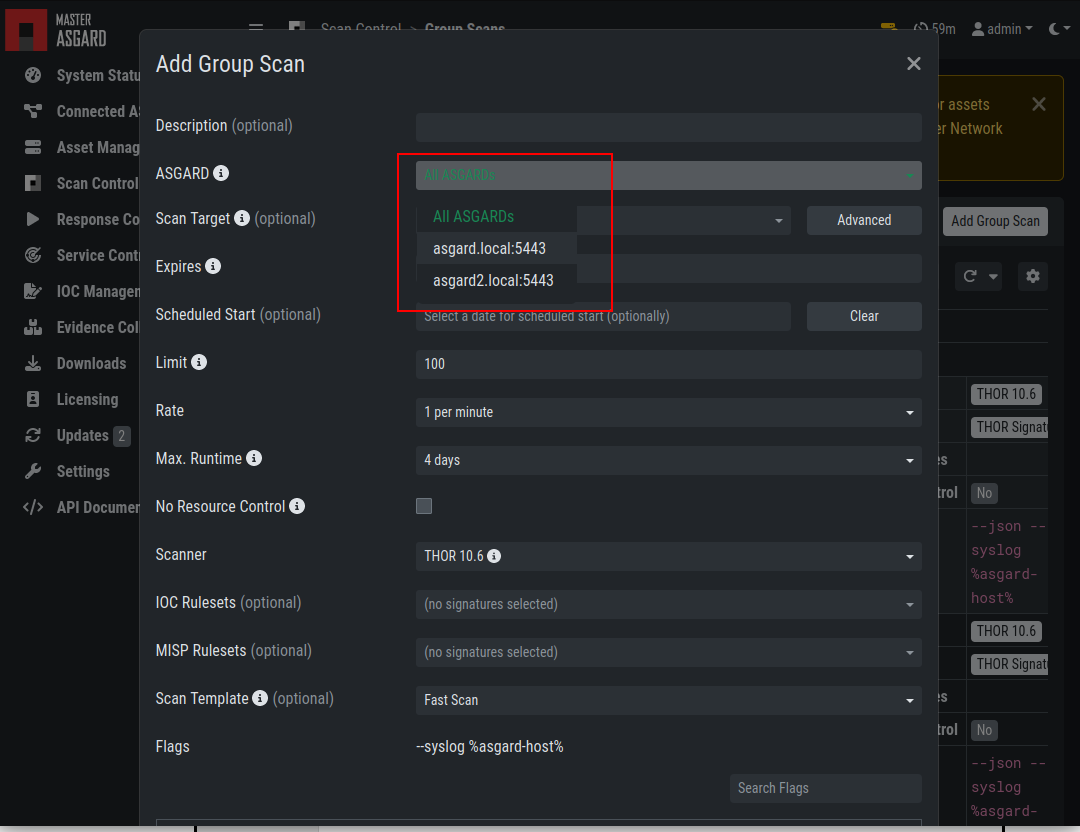
Scan Control in Master ASGARD - Add Group Task
4.7. Asset Management
Asset Management in Master ASGARD is very similar to Asset Management in ASGARD.
The only differences are:
ASGARD column shows to which ASGARD system the endpoint is connected
Only CSV export is allowed (asset labeling via CSV import is unavailable)
4.8. IOC Management
On Master ASGARD you can manage IOCs exactly like on ASGARD. The only limitation is that IOCs in Master ASGARD and ASGARD are isolated. That means if you want to use the IOCs from Master ASGARD, you need to initiate the scan from Master ASGARD and if you want to use the IOCs from ASGARD, you need to initiate the scan from ASGARD. In general, we recommend manage IOCs in Master ASGARD for maximum flexibility.
4.9. Service Control
Service Control lists assets with an installed service controller. An asset is either managed by Master ASGARD or its connected ASGARD, not by both. If an asset is managed by Master ASGARD it can still be viewed by the connected ASGARD, and vice versa. If Master ASGARD or ASGARD edits an asset configuration, it takes over management of that asset regardless of which system managed it before.
4.10. Evidence Collection
All collected evidence is available in Master ASGARD's Evidence Collection section.
4.11. Download Section
The Downloads section of Master ASGARD allows you to generate and
download Agent Installers on all connected ASGARD systems. This allows
central management of the installers.
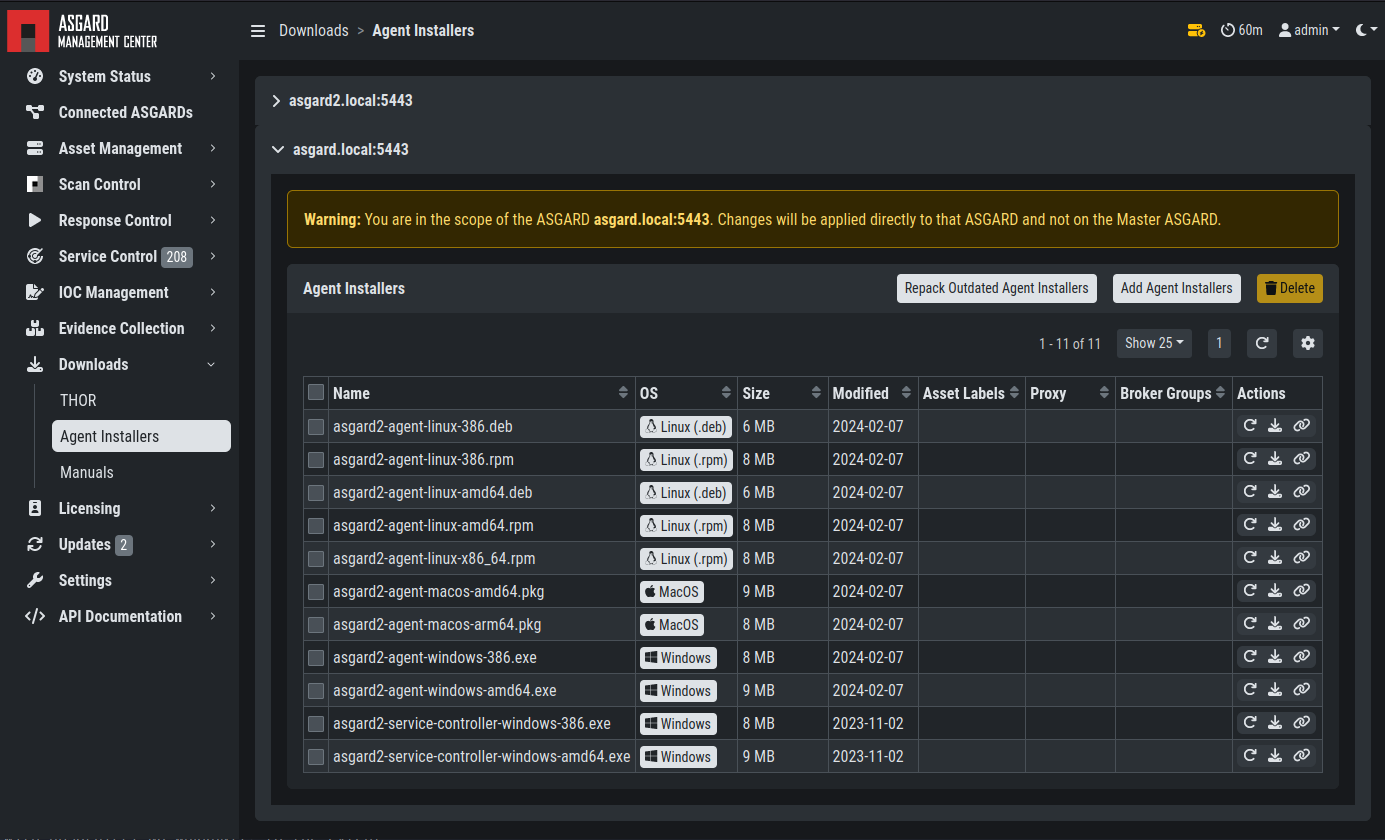
Example: Download Section in ASGARD but managed by Master ASGARD
4.12. Updates
The Updates section contains a tab in which upgrades for
ASGARD can be installed.
The Version Pinning menu allows you to configure
version constraints for THOR, Aurora, and their respective signatures.
When a Master ASGARD is in use, it takes over the role of fetching and
distributing updates to the connected Management Centers, so the version
pinnings configured on the Master apply to all connected Management Centers.
This view is identical to a standalone ASGARD Management Center installation (see Version Pinning).
The view in your connected ASGARD Management Centers, however, will be different:
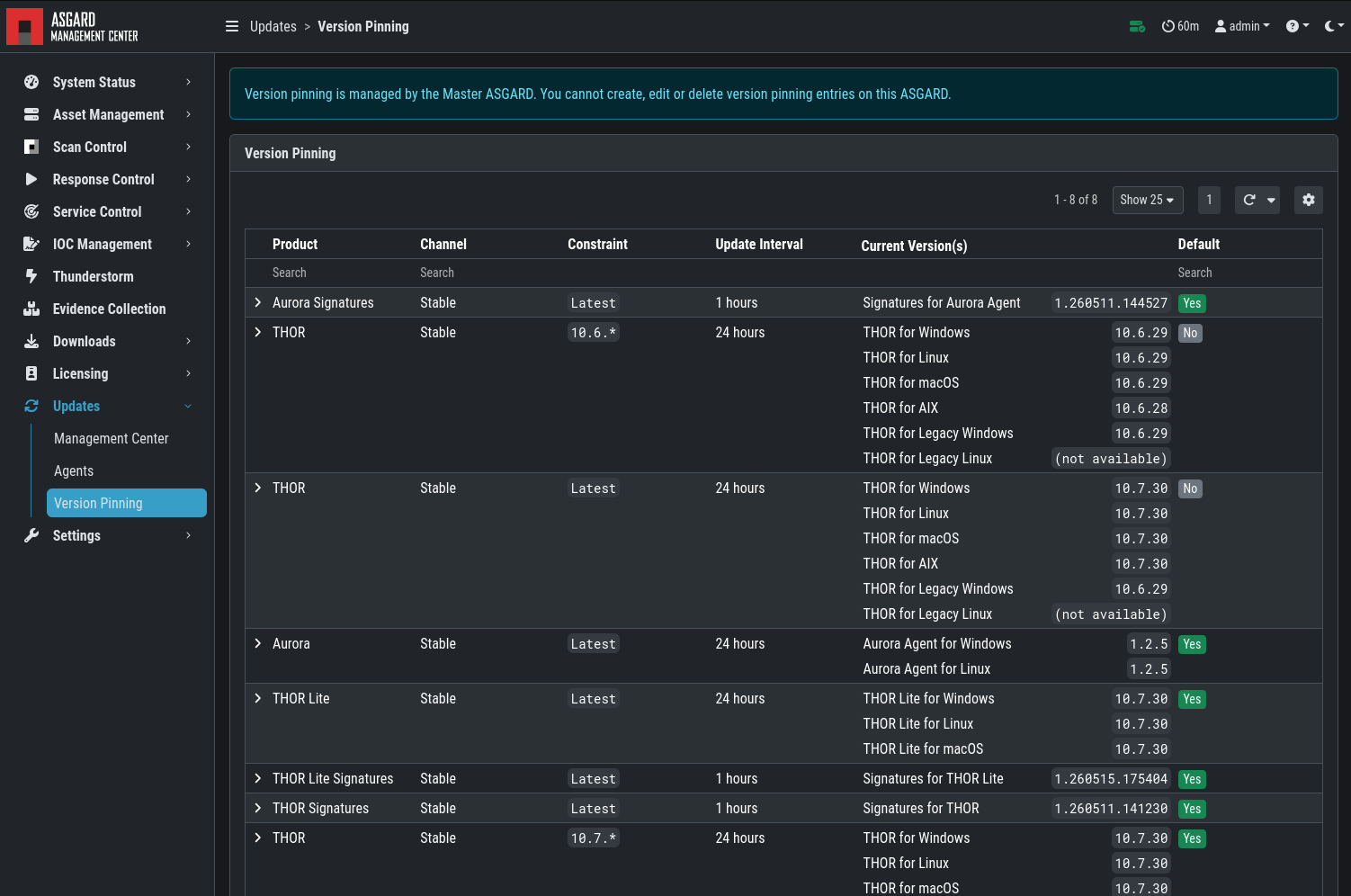
Version Pinning view in a Management Center connected to a Master ASGARD
Version pinnings are configured on the Master ASGARD and are propagated to every connected Management Center. It is not possible to set a different version for an individual connected Management Center — all connected Management Centers use the same pinning configuration defined on the Master.
4.13. User Management
Master ASGARD does not provide central user and role management for all connected ASGARD servers. Since Master ASGARD and ASGARD can use LDAP for authentication, complex and centralized user management should be based on LDAP.
4.14. Master ASGARD and Analysis Cockpit
It is not possible to link a Master ASGARD with an Analysis Cockpit and transmit all scan logs via Master ASGARD to a single Analysis Cockpit instance. Each ASGARD must deliver its logs separately to a connected Analysis Cockpit.
4.15. Master ASGARD API
The Master ASGARD API is documented in the API Documentation
section and resembles the API in ASGARD systems.
However, many API endpoints contain a field in which users select the
corresponding ASGARD (via ID) or all ASGARDs (ID=0).

Master ASGARD API Peculiarity